Simulate a Restriction
Preview the exact release dates and quantities a rule will produce for a real quantity, before you publish or apply it. A simulation never changes anything.
A simulation shows you what a rule would actually do to a real holding. You enter a security class, a quantity and a start date. Cuspy returns every release date and the exact quantity released on each.
It uses the same calculation as a real restriction, including the rule's Remainder Handling. What you see is what the restriction will be.
A simulation never changes anything. It does not create a restriction, change a rule or touch a holding. Nothing is saved, and you can run it as often as you like.
Note: Simulation is available for rules with the In Tranches schedule. A Fixed rule releases everything at once, so there is nothing to split.
Where you can simulate
Simulate while creating or editing a rule
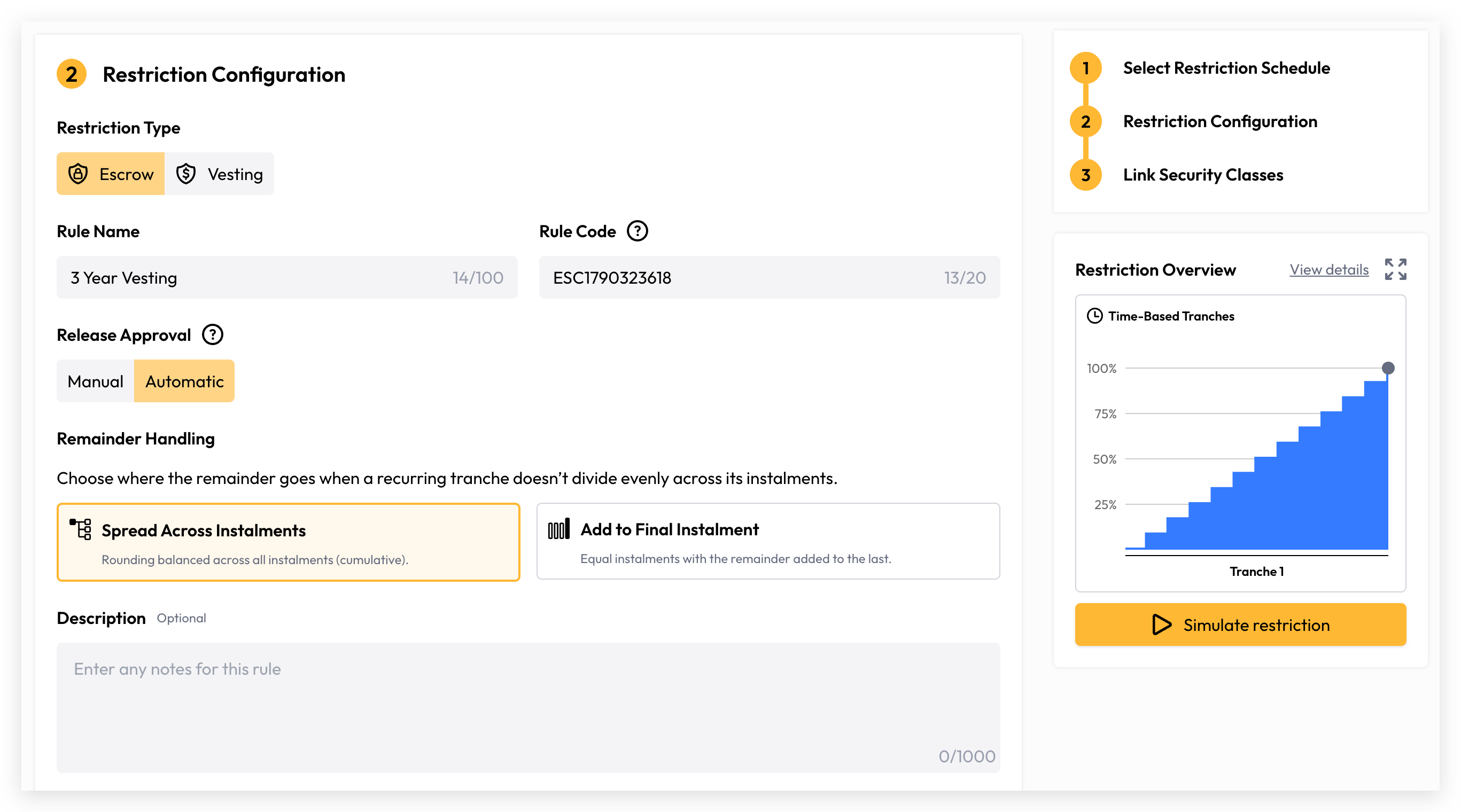
On the Create a New Rule page, choose In Tranches and add at least one tranche or event.
In the Restriction Overview panel on the right, select Simulate restriction.
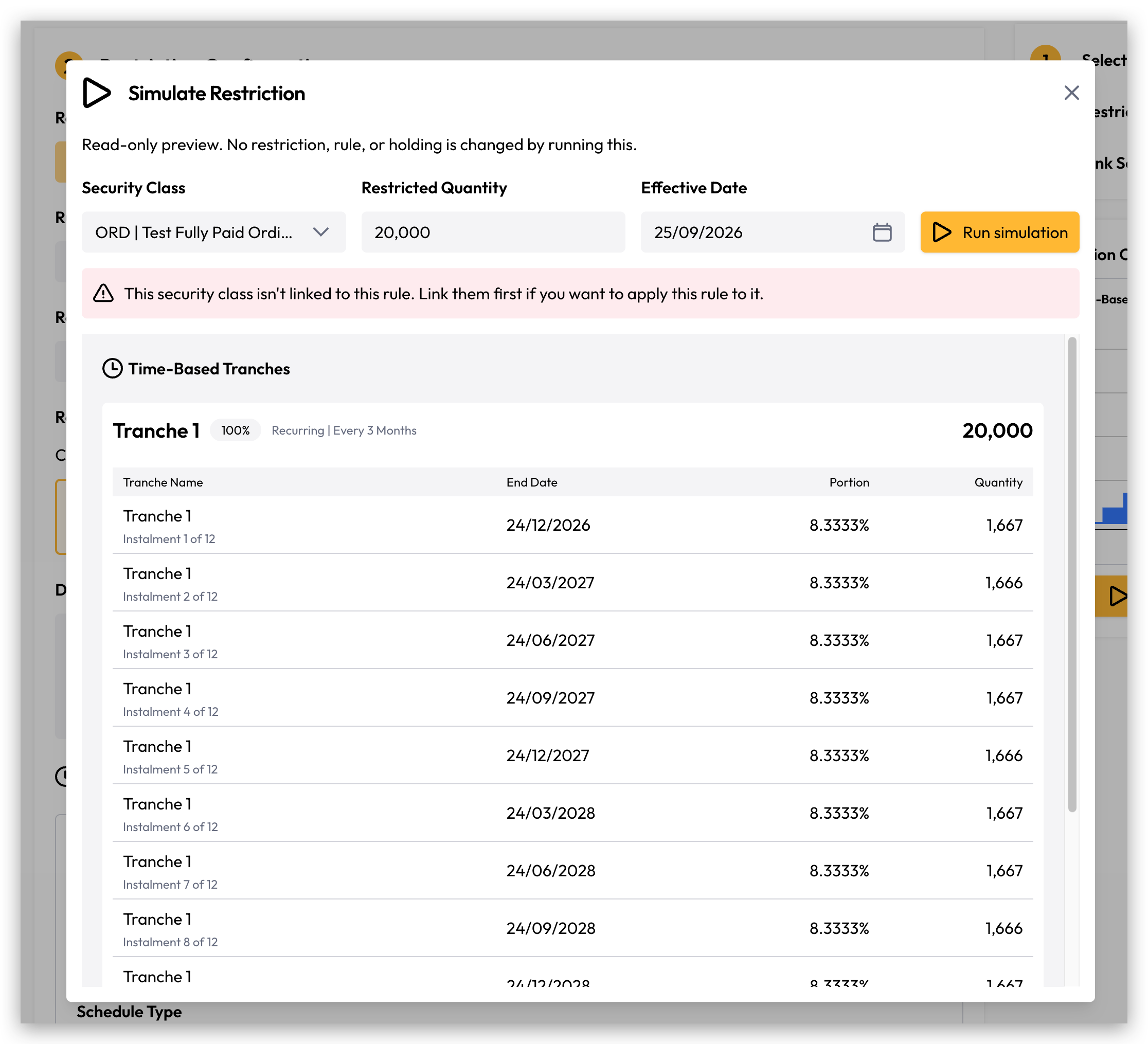
The Simulate Restriction window opens. Fill in the inputs and select Run simulation (see Simulation inputs below).
The simulation uses your current settings on the page, even if you have not saved them yet. Closing the window clears the inputs and results.
Simulate a saved rule
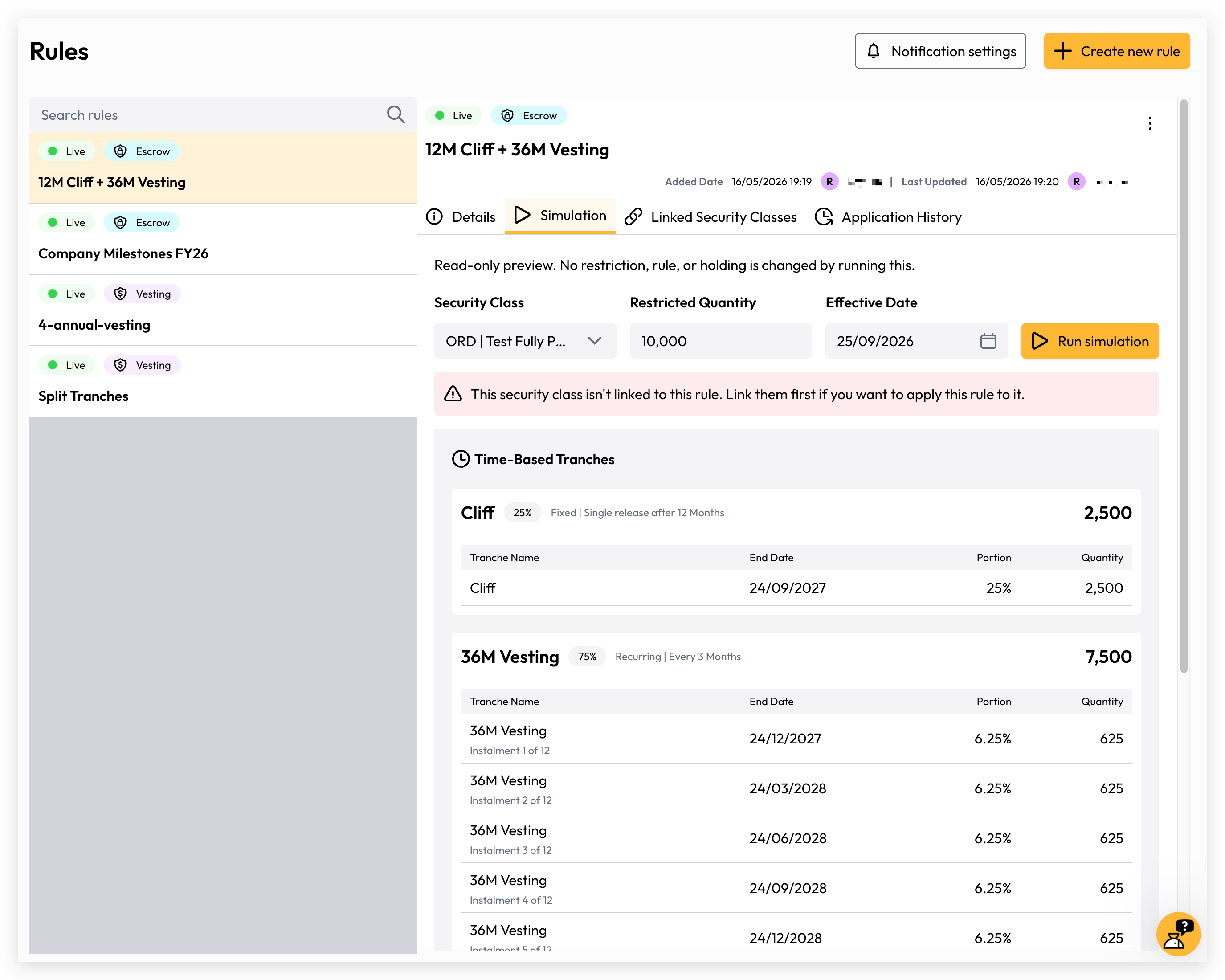
Go to Rules and select the rule.
Open the Simulation tab.
Fill in the inputs and select Run simulation.
Simulation inputs
If you choose a security class that is not linked to the rule, you will see a warning. You can still simulate, but you must link the class before you can apply the rule to it.
The results only change when you select Run simulation again. Editing an input does not update them on its own.
Reading the results
Results are grouped into Time-Based Tranches and Events.
Time-Based Tranches
Each tranche has a card showing its name, its portion, its schedule, and the total quantity it releases. The schedule reads either Recurring | Every 3 months or Fixed | Single release after 12 months.
The table under each card lists every release:
Events
Each event shows its condition, portion and quantity, but no date. An event has not happened yet, so its securities stay restricted until the release is approved.
Example
A rule has a 70% Recurring tranche released every 3 months over 12 months, and a 30% event. You simulate 10,000 securities in a class with 0 decimal places, starting 1 January 2026:
Messages you may see
Preview when applying a rule to a transaction
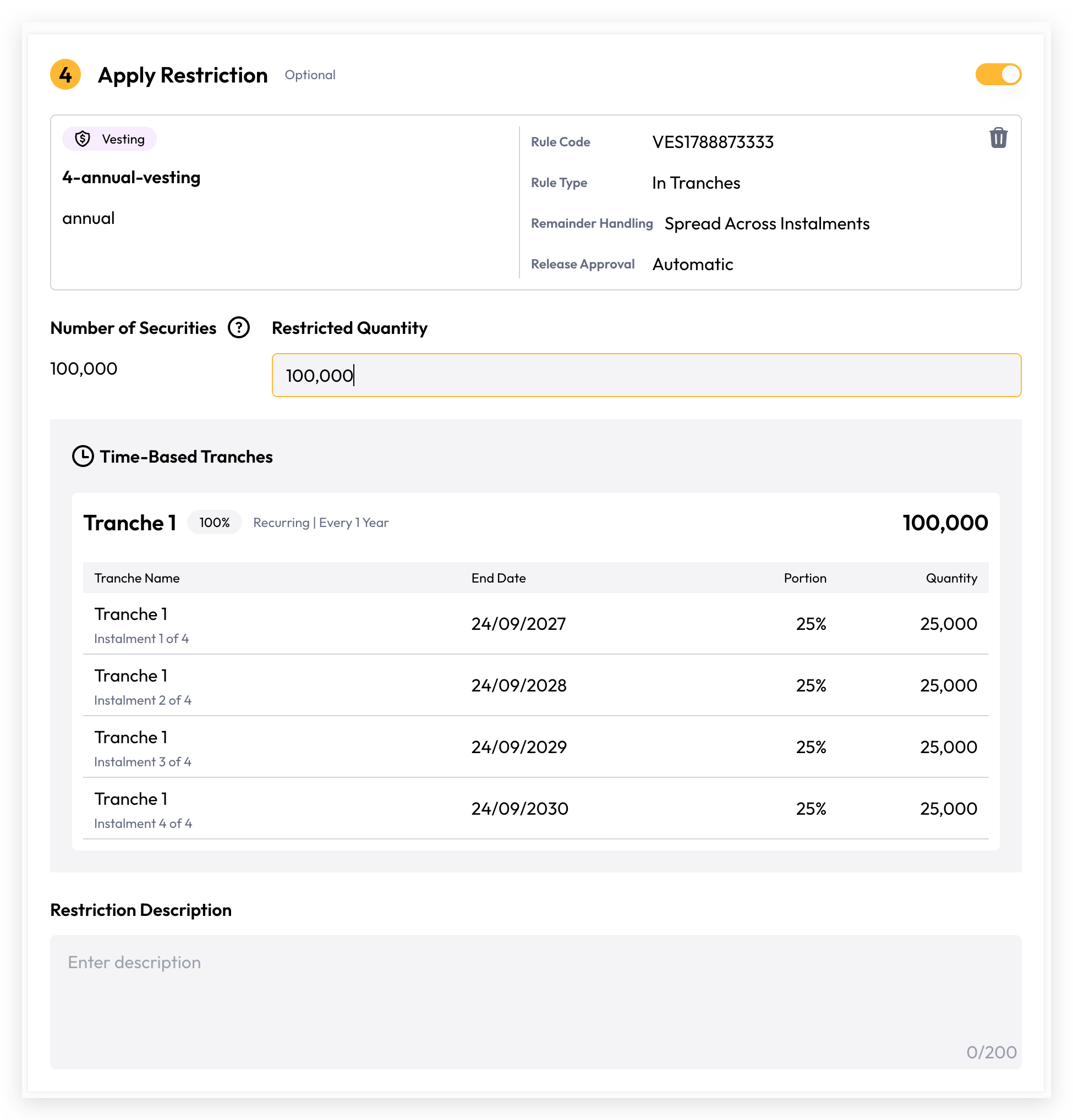
When you apply an In Tranches rule — while creating a transaction, or to an existing one — the Apply Restriction step shows the schedule for you. There is no button to press.
Select the rule.
Enter the Restricted Quantity. It cannot be more than the transaction's Number of Securities.
The schedule appears below the quantity, laid out the same way as the simulation results.
Here the security class and start date come from the transaction, so you cannot change them. The start date is the transaction's Effective Date. If you change the quantity, or the draft transaction's details, the schedule updates to match.
The same schedule is shown again when you select Review and confirm. Nothing is created until you confirm.
Frequently asked questions
Is a simulation saved or recorded anywhere?
No. It is not saved, not attached to the rule, and not written to the audit history.
Will the real restriction match the simulation?
Yes, if the inputs are the same. The simulation uses the same calculation and the rule's Remainder Handling setting.
Why do I get different quantities for different security classes?
Each class can allow a different number of decimal places, which changes how the quantity is rounded.
Can I simulate an event happening on a certain date?
Not at the moment. Events always show as pending, with no release date.
Related
Rules Management — creating rules, tranches and Remainder Handling.
Rule Application — applying a published rule to a holding.
Still need help? Share an idea