Rule Application
Apply a published restriction rule to a holding — when creating a transaction, or to an existing transaction.
A rule you create under Rules is a template: it defines how securities are held and released — escrow or vesting, fixed or in tranches, released automatically or on approval. Creating a rule does not restrict anything on its own.
Restriction application is the step that puts it to work: attaching a published rule to a specific quantity of a specific investor's holding, so those securities are held under that rule's schedule until they are released.
There are two moments where you can do this:
while creating a new transaction — restrict the securities as they land in the account; or
on an existing transaction — restrict securities that are already held.
Before you start
A rule can only be applied if it is published (Live) and linked to the security class you are transacting in. A rule saved as a draft, or linked only to other classes, will not be available to select.
See Rules Management for creating and publishing rules and linking them to security classes.
Apply a restriction when creating a transaction
Go to Security Classes, open the actions menu (⋮) on the security class card, and select Make new transaction.
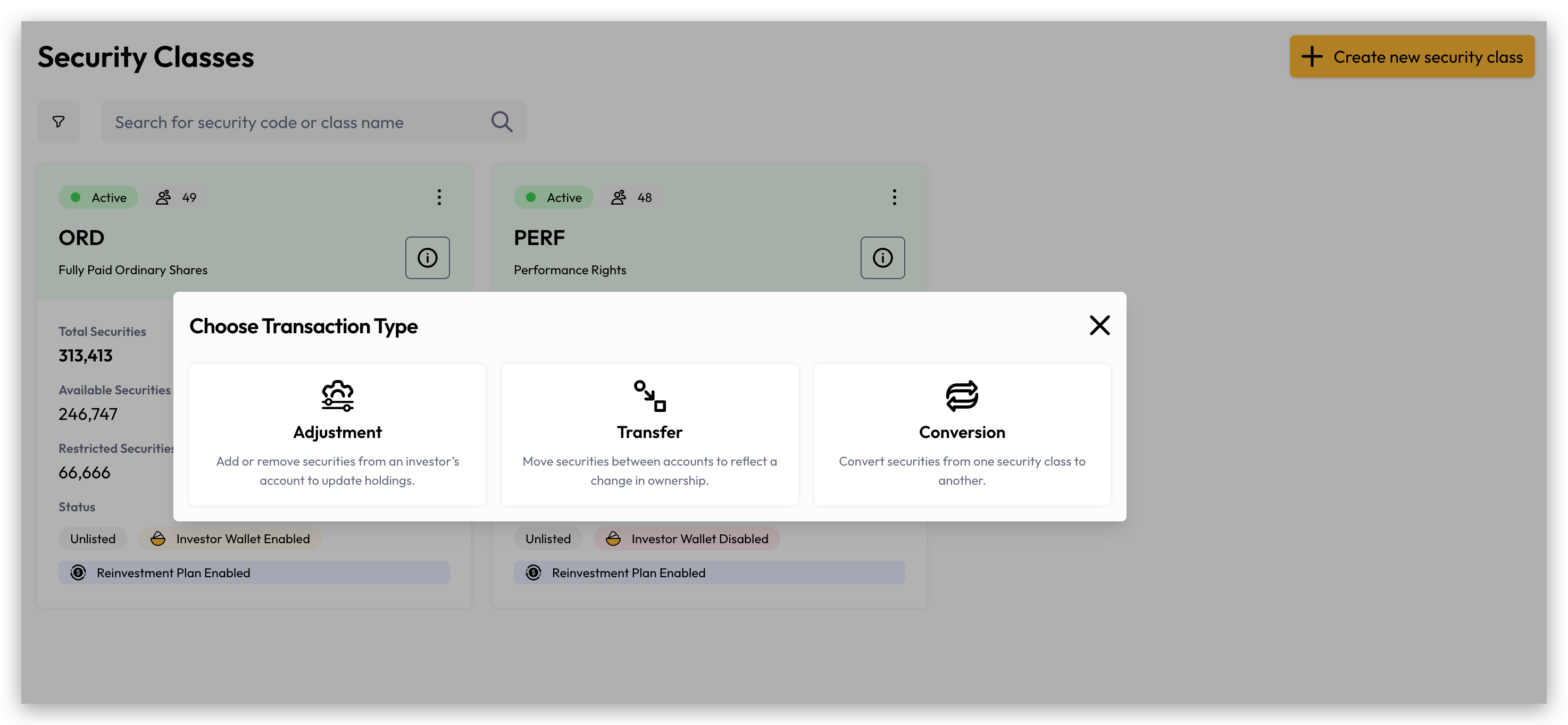
Choose the transaction type:
The transaction form then walks through four steps, shown in the progress panel on the right:
Select Security Class — pre-filled with the class you started from.
Select Investor Account — search for the account. The selected account shows its Available Securities and Cash Account Balance.
Transaction Details — the movement itself.
Apply Restriction (optional) — the toggle that attaches a rule.
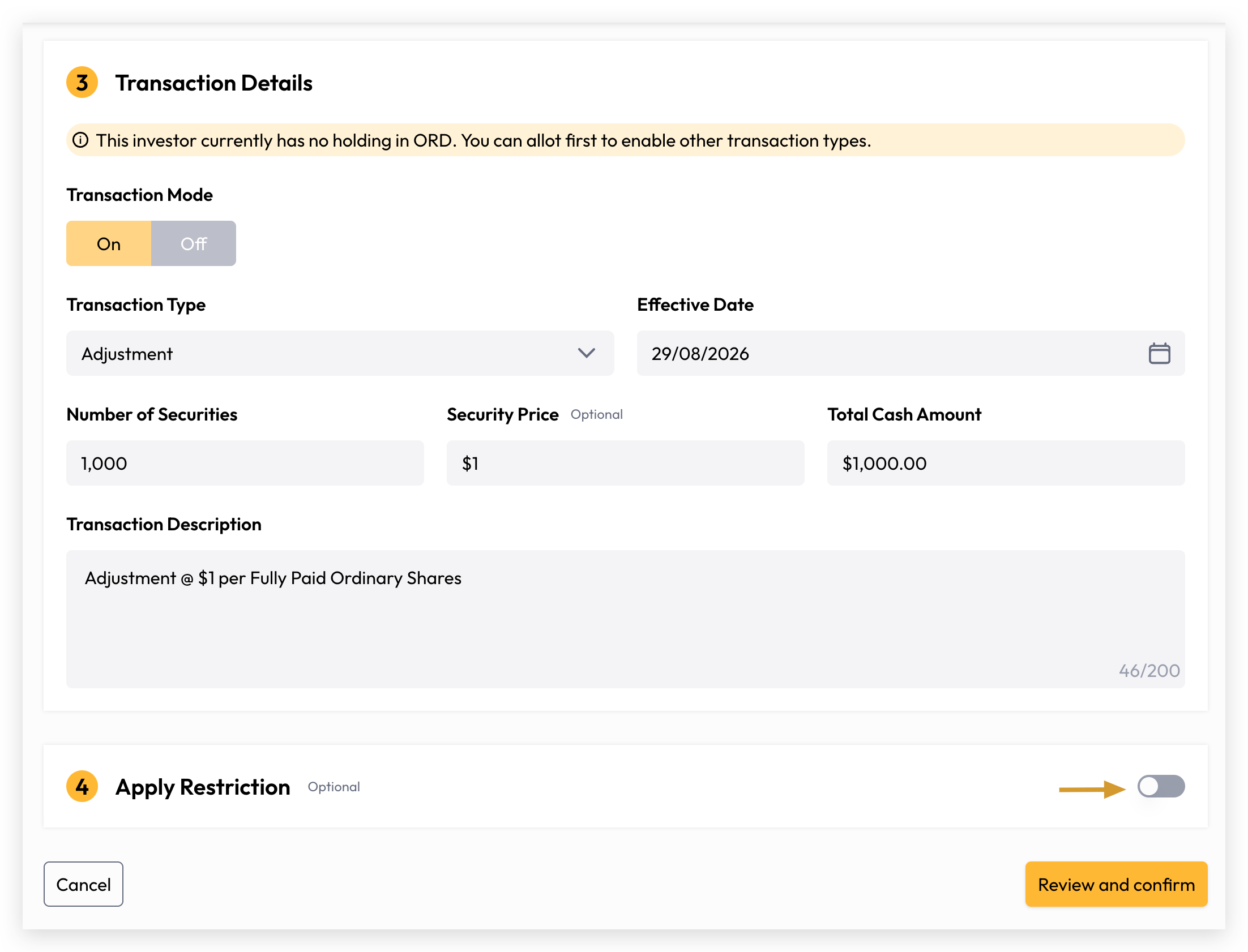
Transaction Details
Apply Restriction
Step 4 is optional and off by default — leave it off and the securities are unrestricted. Switch it on to hold some or all of the transaction's securities under a rule.
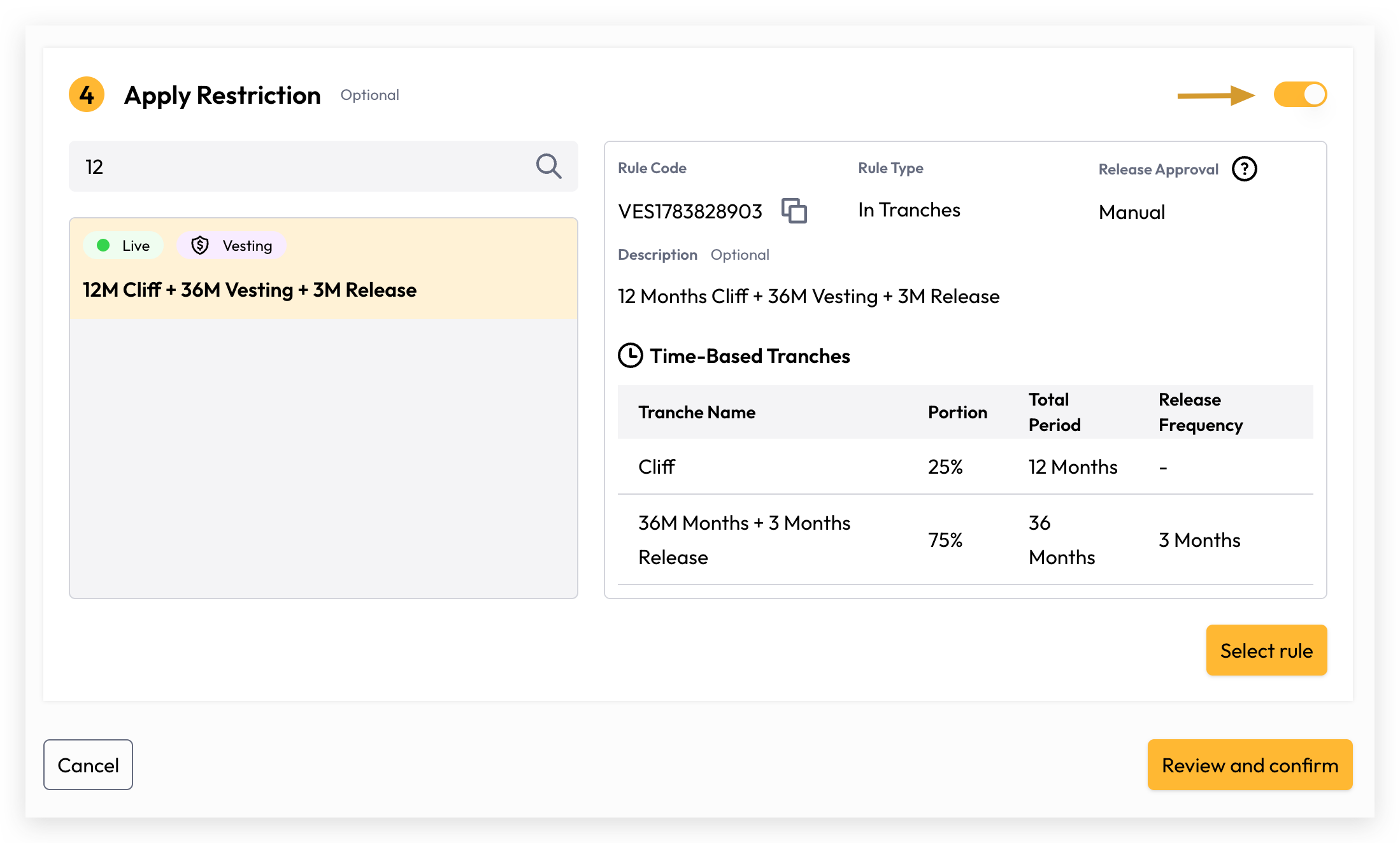
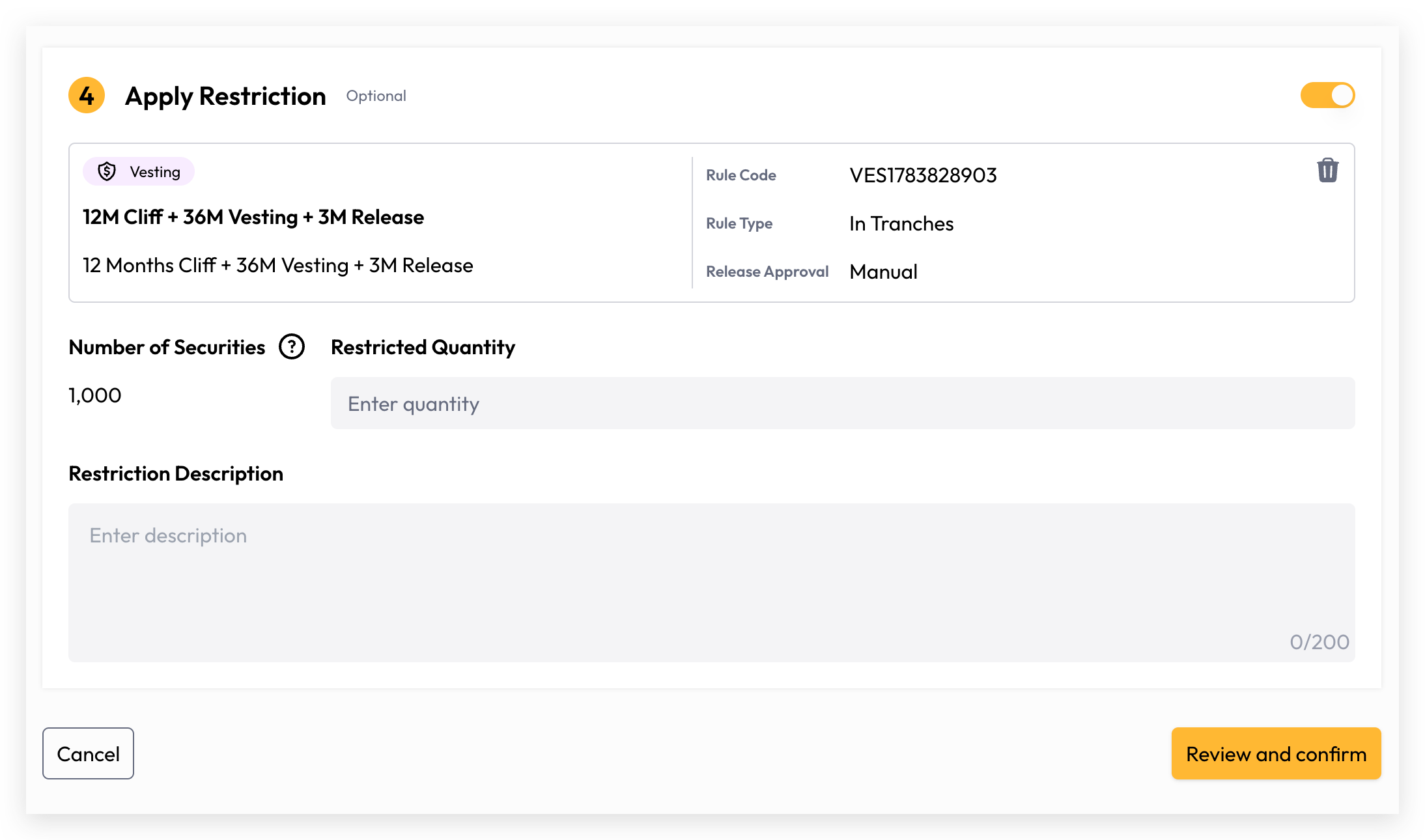
Select Review and confirm to check the transaction before it is committed, or Cancel to discard it.
Apply a restriction to an existing transaction
Securities that are already held can be brought under a rule without creating a new transaction.
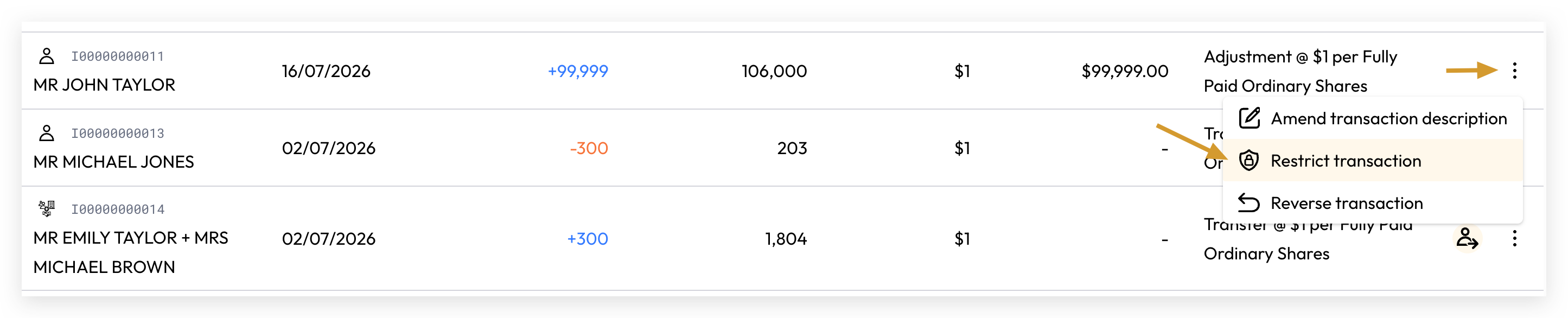
What changes once a restriction is applied
Restricted securities remain part of the investor's holding — they are not moved or removed. What changes is how much of the holding is available.
Each security class card on the Security Classes page shows the split:
Total Securities — everything on issue in the class.
Available Securities — what can be transacted.
Restricted Securities — what is currently held under a rule.
Restricted quantities are excluded when Cuspy checks whether an account has enough securities for a transaction. If an account holds 100 securities with 30 restricted, a transfer of 80 is rejected — only 70 are available — while a transfer of 70 or fewer succeeds.
Release
Securities are released according to the schedule configured on the rule — in full on a date or qualifying event for a Fixed rule, or progressively for a rule In Tranches. Whether a release happens automatically or waits for approval depends on the rule's Release Approval setting. Event-based tranches always require manual review, even when the rule is set to automatic.
Cuspy can email investors and your own team whenever a restriction is released. This is switched off by default and is configured organisation-wide — see Rules Notification Settings.
Related
Rules Management — creating rules, schedules and tranches, and linking security classes.
Rules Notification Settings — release notification emails.
Still need help? Share an idea