Rules Notification Settings
Configure automatic email notifications sent to investors and your team when a security restriction is released.
Notification Settings
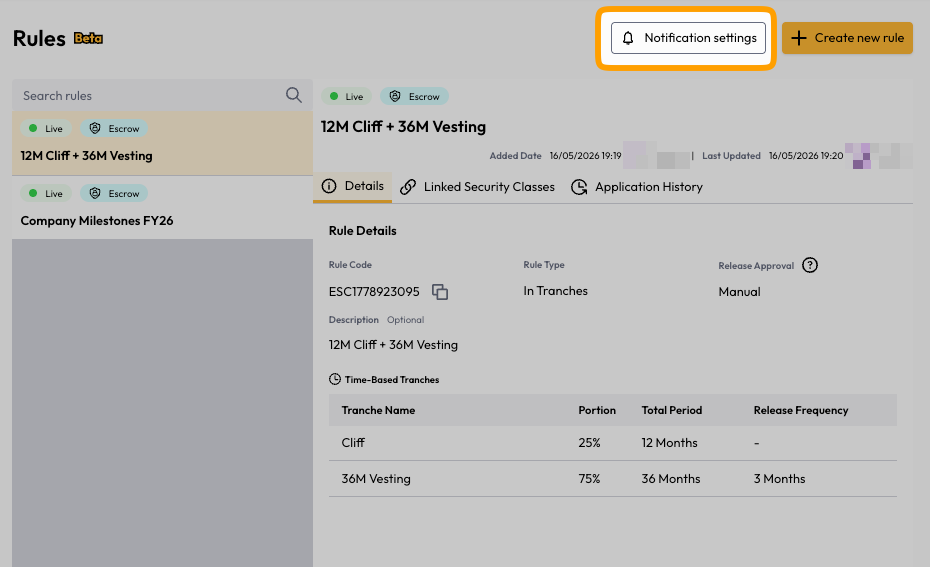
Where to find it:
From the Rules page, click the Notification settings button in the top-right corner, or
In the left sidebar, click Settings to expand the menu, then select Notification Settings
Overview
The Notification Settings page lets you control whether automatic email notifications are sent to investors and internal team members when security restrictions are released. These settings apply organisation-wide — across all rules — rather than on a per-rule basis.
Security Restriction Email Notification
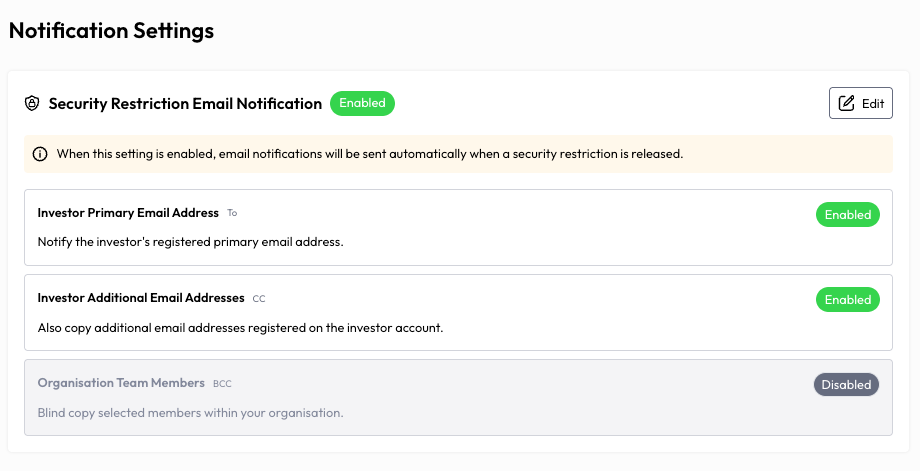
This is the master notification type currently available. When enabled, Cuspy will automatically send email notifications whenever a security restriction is released on any rule within your organisation.
Status: By default, this setting is disabled. You must manually enable it before any notifications are sent.
To configure it, click the Edit button in the top-right corner of the notification card.
Edit Modal: Configuration Options
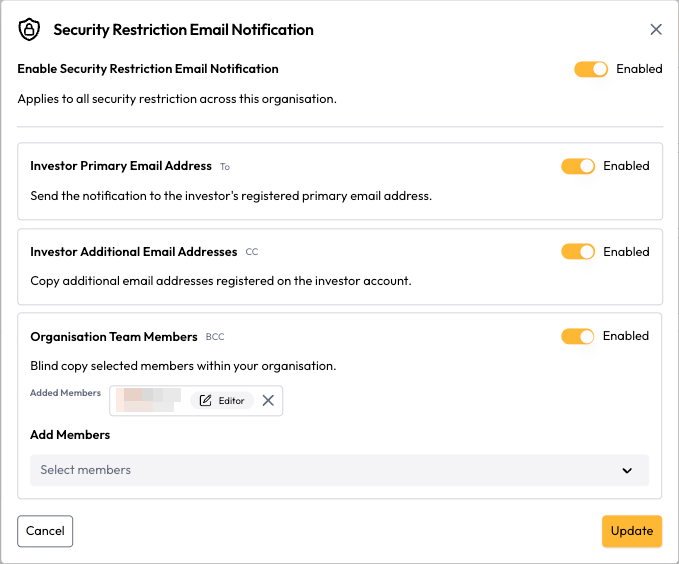
Clicking Edit opens a dialog with a master toggle and three recipient settings:
Enable Security Restriction Email Notification (master toggle) Turns the entire notification on or off. This applies to all security restrictions across the organisation. All three recipient settings below are only active when this master toggle is enabled.
Investor Primary Email Address — To Sends the notification directly to the investor's registered primary email address. This is the main recipient field. Enable this if you want investors to be notified directly when their security restriction is released.
Investor Additional Email Addresses — CC Copies any additional email addresses registered on the investor's account. If an investor has secondary or alternate email addresses saved in their profile, enabling this will carbon copy them on the notification.
Organisation Team Members — BCC Blind copies selected members within your organisation on every notification. This is useful for keeping internal stakeholders (e.g. compliance officers, administrators) informed without the investor seeing who was copied.
Saving Changes
After configuring your toggles, click Update to save. Click Cancel to discard any changes.
Tips
All three recipient options are independent — you can enable any combination of them (e.g. notify the investor's primary address and BCC your team, without CCing additional investor addresses).
The BCC to Organisation Team Members requires that those team members are already added to your organisation in Settings → User Management.
These settings are organisation-wide; there is currently no way to set different notification preferences per individual rule.
Still need help? Share an idea