Delivery Emails
Learn how to delivery emails to your investors
Email Recipients
There are three ways to select recipients for bulk email sending:
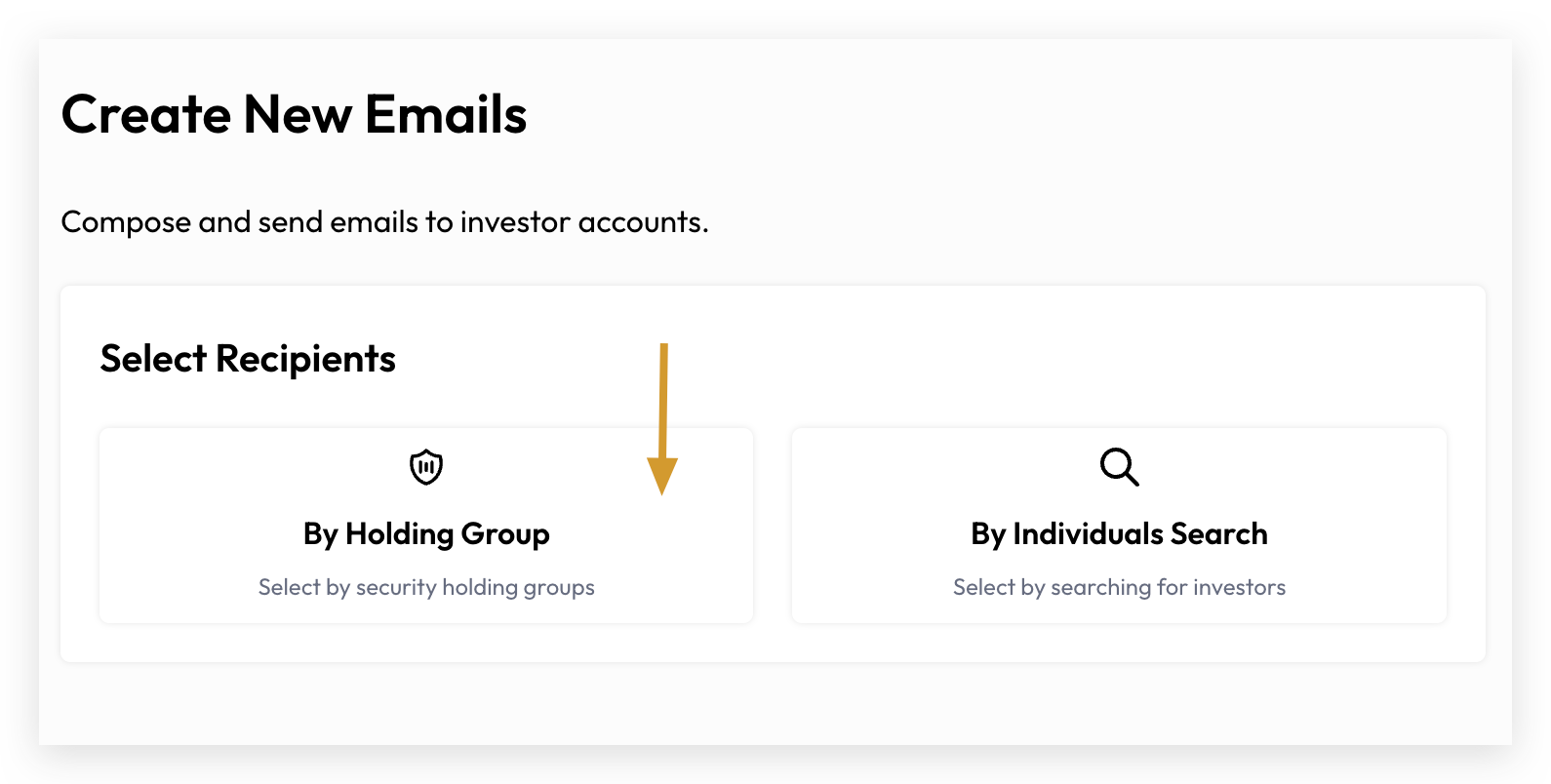
Holding Group — Find investors associated with a holding group who have a valid primary email on file.
Individual Search — Look up specific investor accounts with a valid primary email on file.
Pre-Generated Documents — Select a batch of previously generated documents to bulk-send emails containing secure document links to the associated investors. This option is initiated from the Generate Documents to-do task. Want to know more about sending generated documents via email? See the relevant section for a full walkthrough.
Holding Group
Select “By Holding Group” from Create New Emails page
Select “Holdings” Criteria:
With holding: include investors who have an existing holding in the select securities
No holding: include investors who do not any position in the selected securitires
Select “Balance” Criteria:
Balance selection is based “With Holding”. By default, With holding and Positive balance are pre-selected.
Positive balance: include investors whose holding in the selected securities reflected a balance greater than zero
Zero balance: include investors whose holding in the selected securities currently reflects a balance of zero.
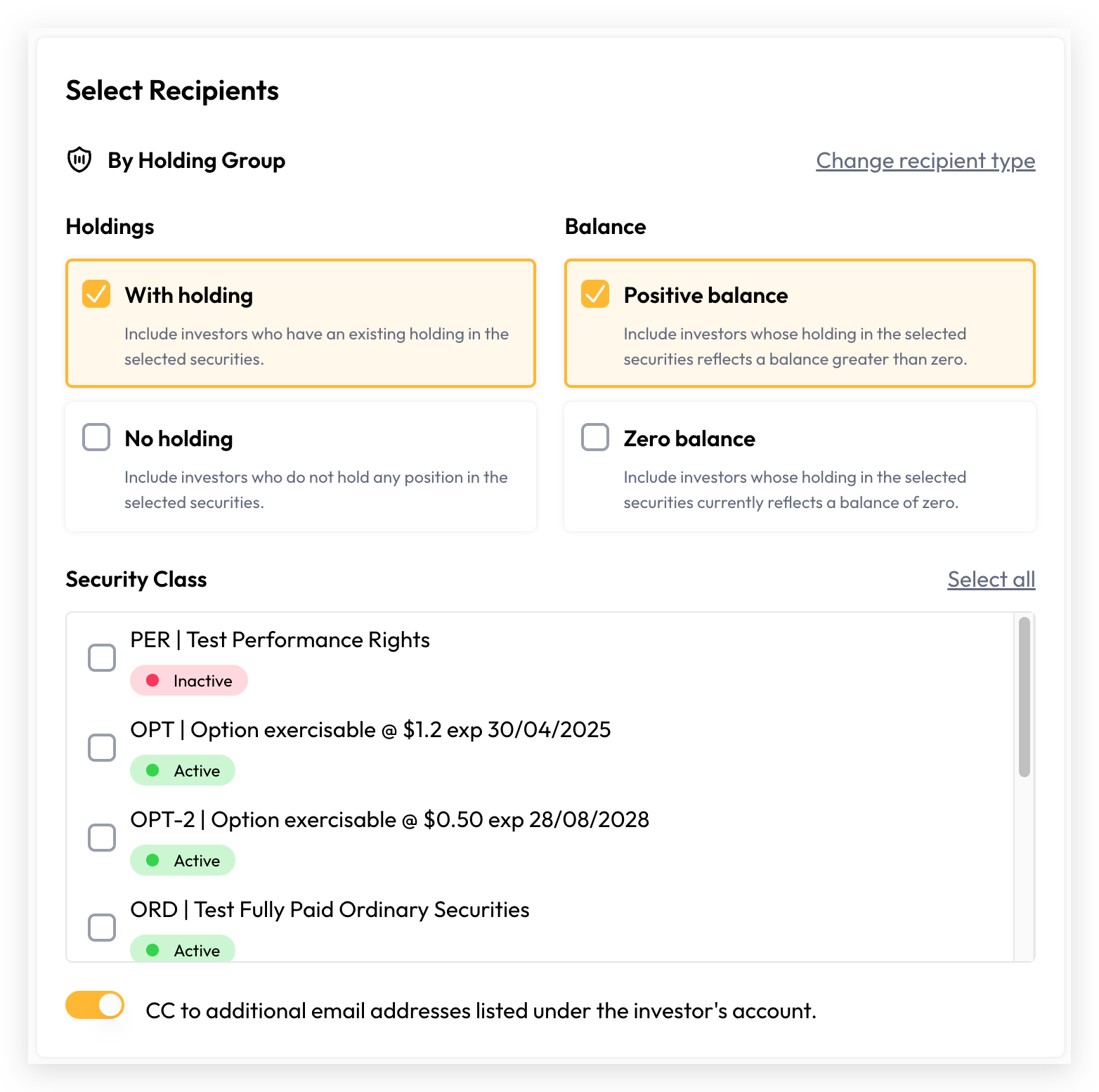
After selecting your holdings, you can select one or more securities. The system will then automatically identify the relevant investors and show you the total number of recipients for this email delivery.
Tip: If the recipient count shows zero after completing your selection, this means the matching investor accounts do not have a primary email address on file.
If you'd like to CC additional email addresses on the investor's account, enable the "CC to additional email addresses listed under the investor's account" toggle. This only applies where additional emails have been configured — investors without them will receive the email to their primary address only.
Individuals Search
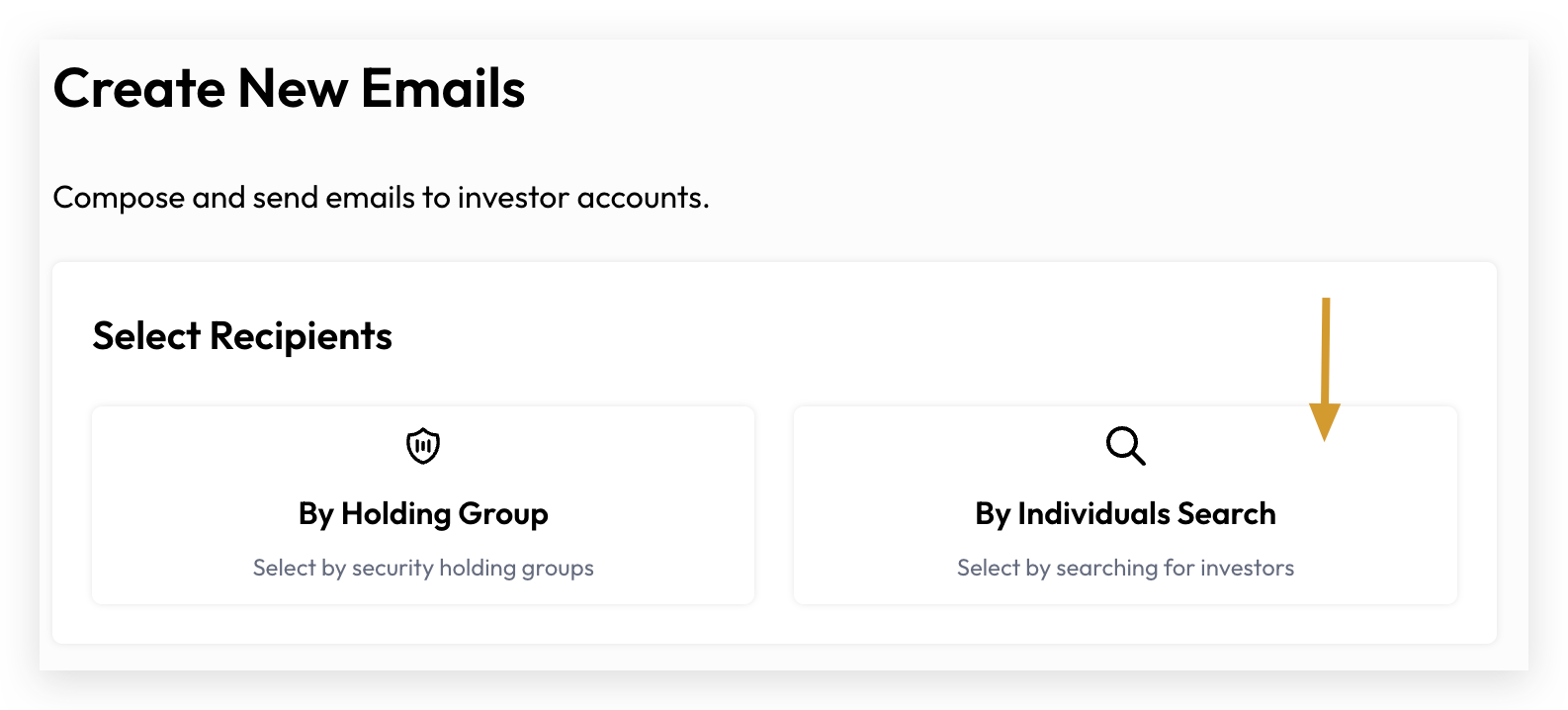
Use Individual Search to send a one-off email to specific investor accounts. The selected accounts must have a primary email address.
You can search for investors using their account number, name, address, or email address.
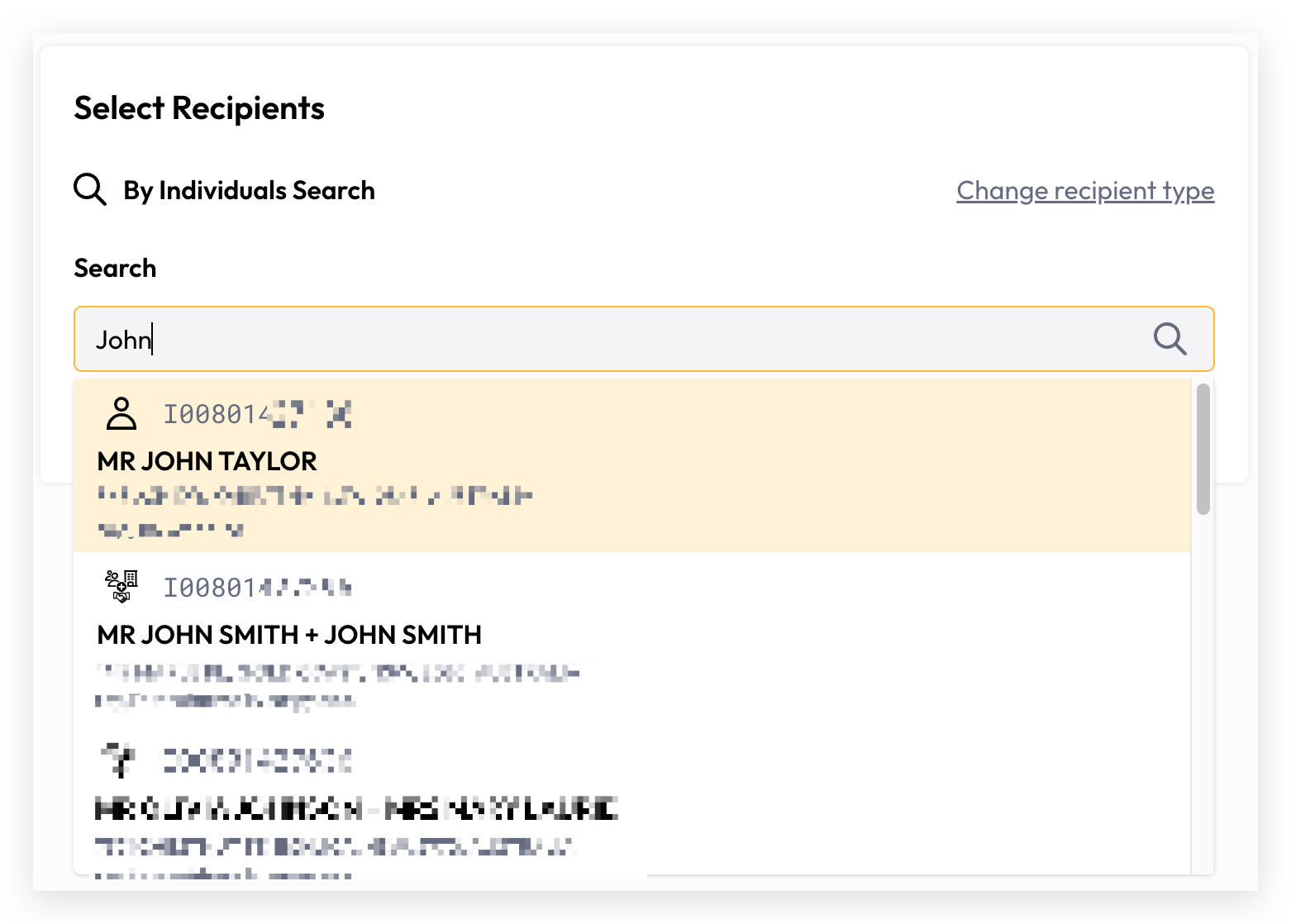
Once the results appear, simply click on the desired entry to select it.
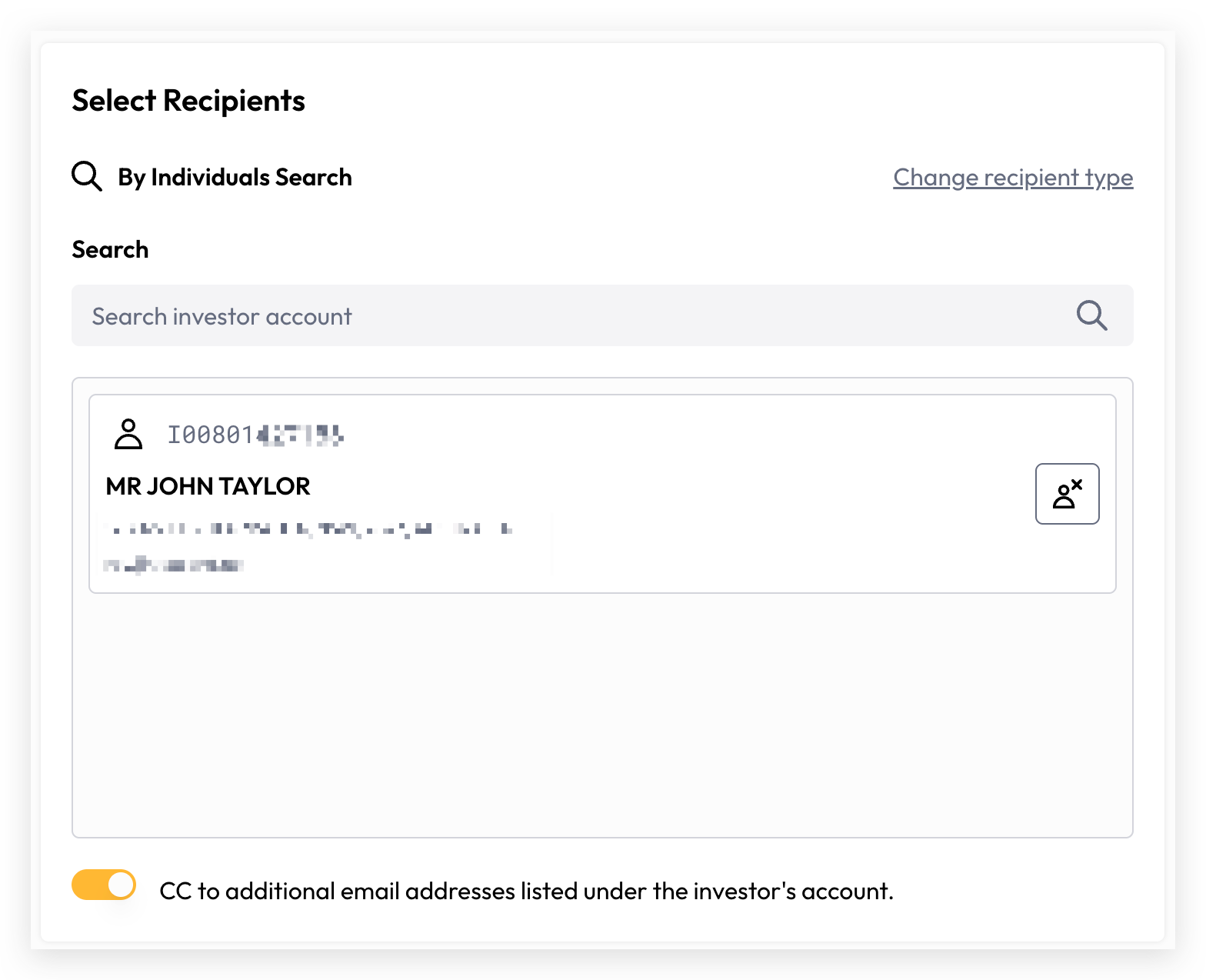
To deselect an investor, simply click the Remove Investor Account button.
Email Sending
After recipients selection is done, load email template or craft a new email from scratch by filling the subject and body.
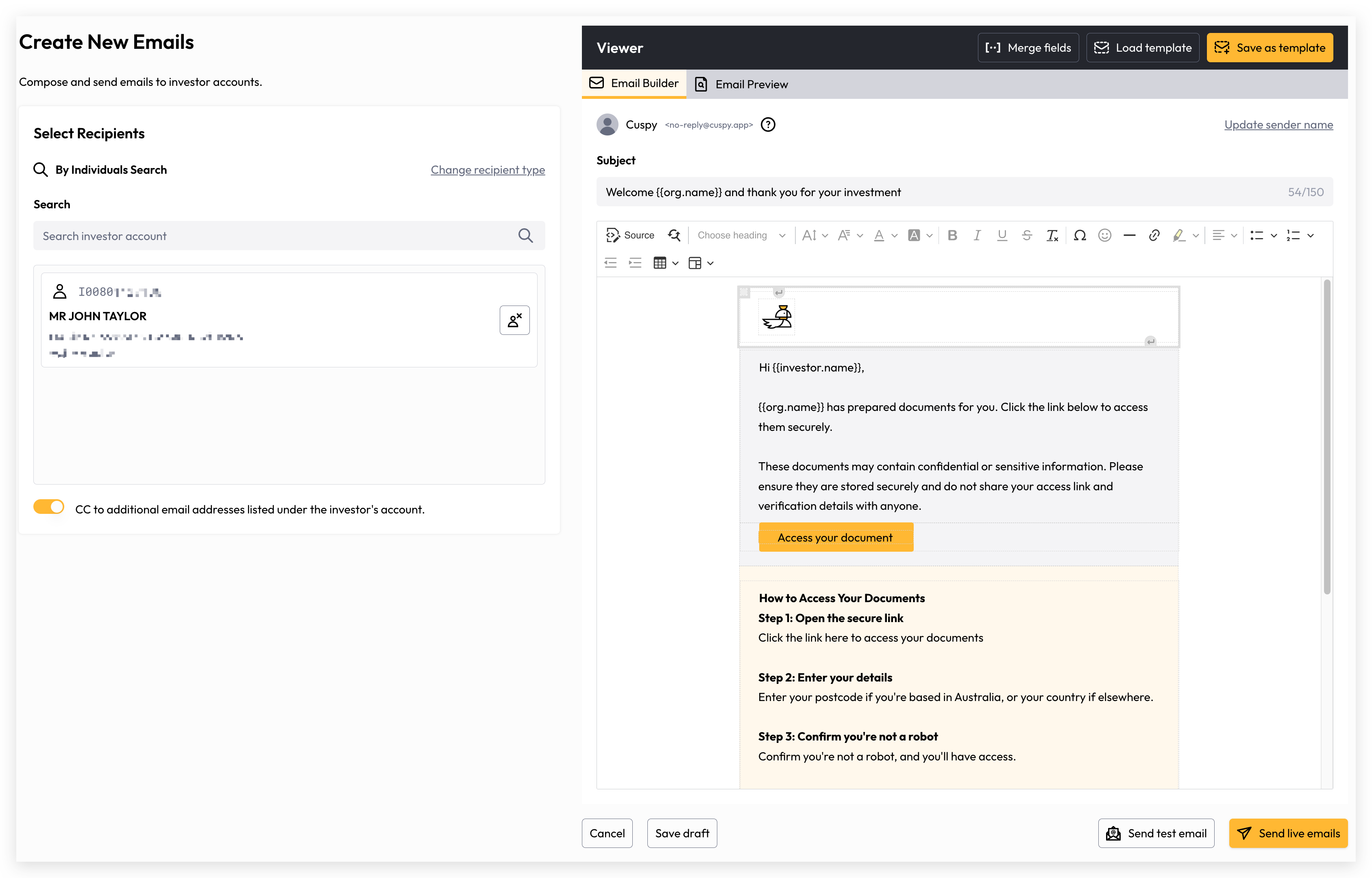
Save Draft
You can save your email task as a draft at any time. This ensures your progress is always saved and nothing is lost while you're crafting your content.
Send Test Email
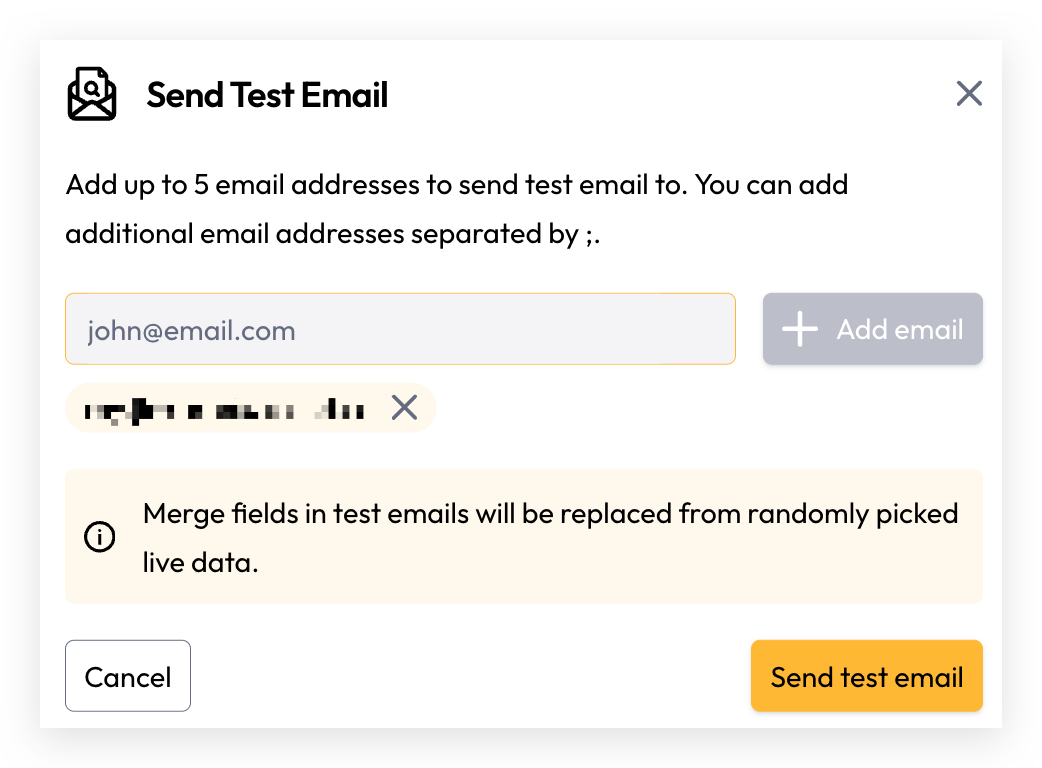
Before sending your email to all recipients, we recommend sending a test email first. This gives you the opportunity to review the content, verify that merge fields are populating correctly, and check how the email renders across different email clients and on mobile.
Your current login email is automatically pre-filled so you can quickly send a test to yourself. You can also add up to 5 additional email addresses — useful for sharing the email with others for content review or approval before going live.
Send Live Emails
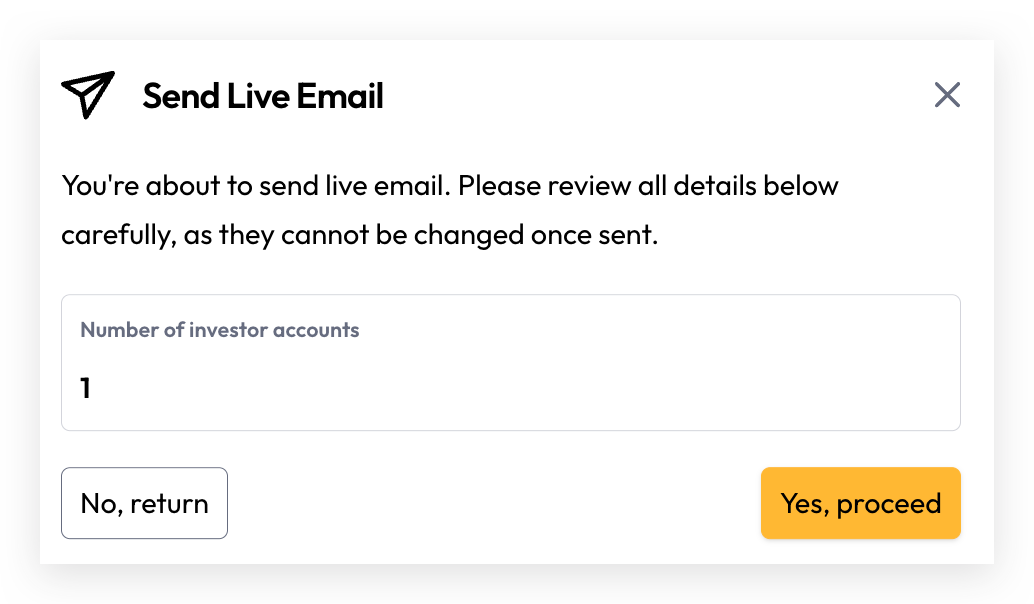
When you're happy with your email, click Send Live Emails to broadcast to all recipients. This initiates a batch job in the background — delivery time may vary from a few seconds to a few minutes depending on the number of recipients.
Before sending, the system will show you the total email count one last time, so you can confirm everything looks right before proceeding.
Track Progress
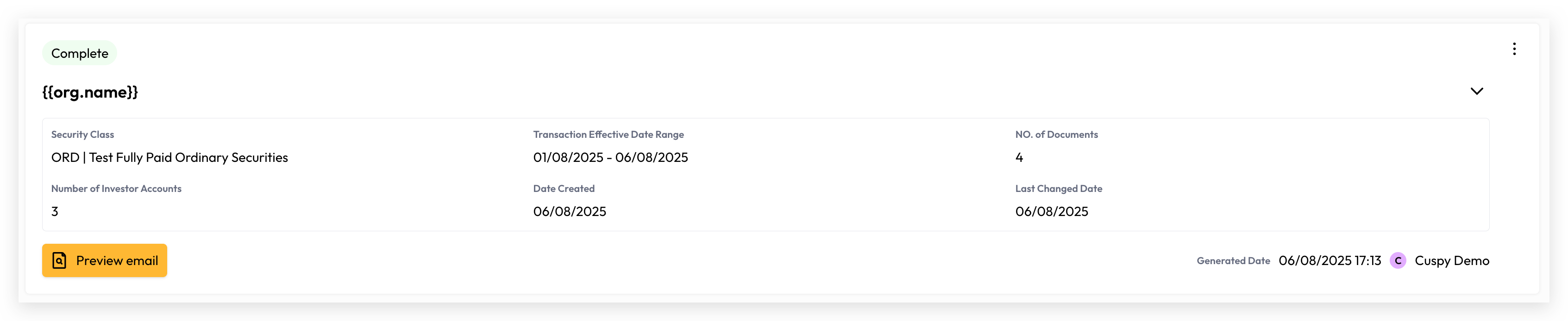
Once you confirm and click send, you'll be taken to the email tasks list page. From there, you can monitor the progress of your email task and expand it to review the configuration details.
Still need help? Share an idea