Holding Statement Generation
Learn how to generate holding statements and delivery to your investors
Once you are familiar with Manage Document Templates, you can proceed to create document tasks for holding statement generation.
Create new document > Select Holding Statement

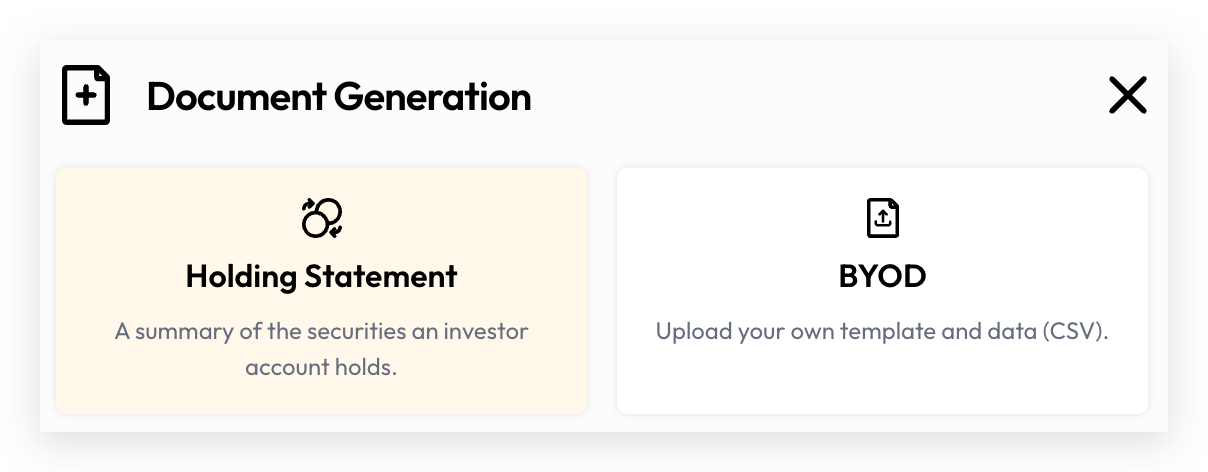
Create New Documents
Document Setup
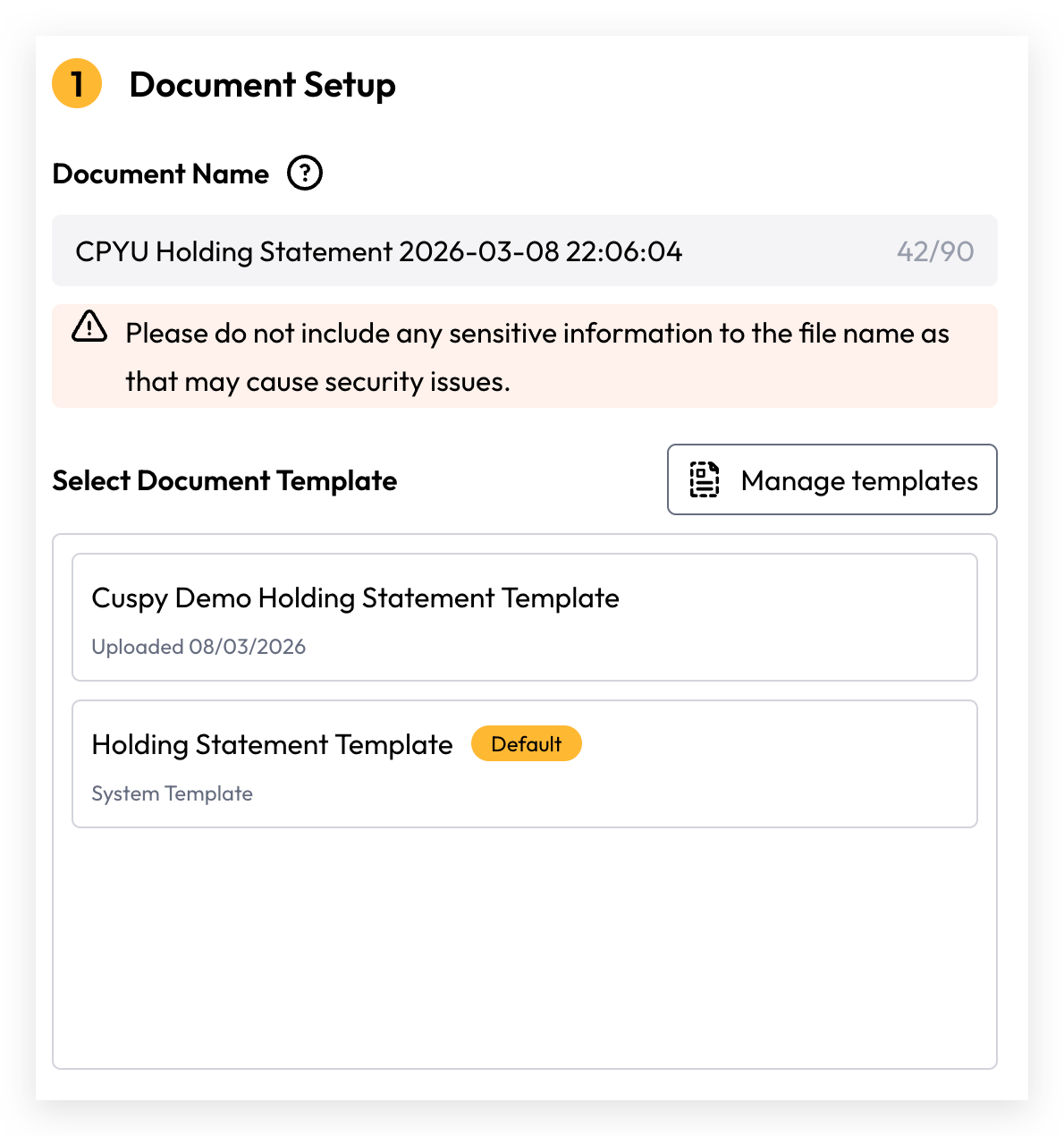
Ensure the Document Name is provided and accurately reflects the content and purpose of the document. This name will be visible to investors and used as the downloaded file name. Please do not include any sensitive information in the document name.
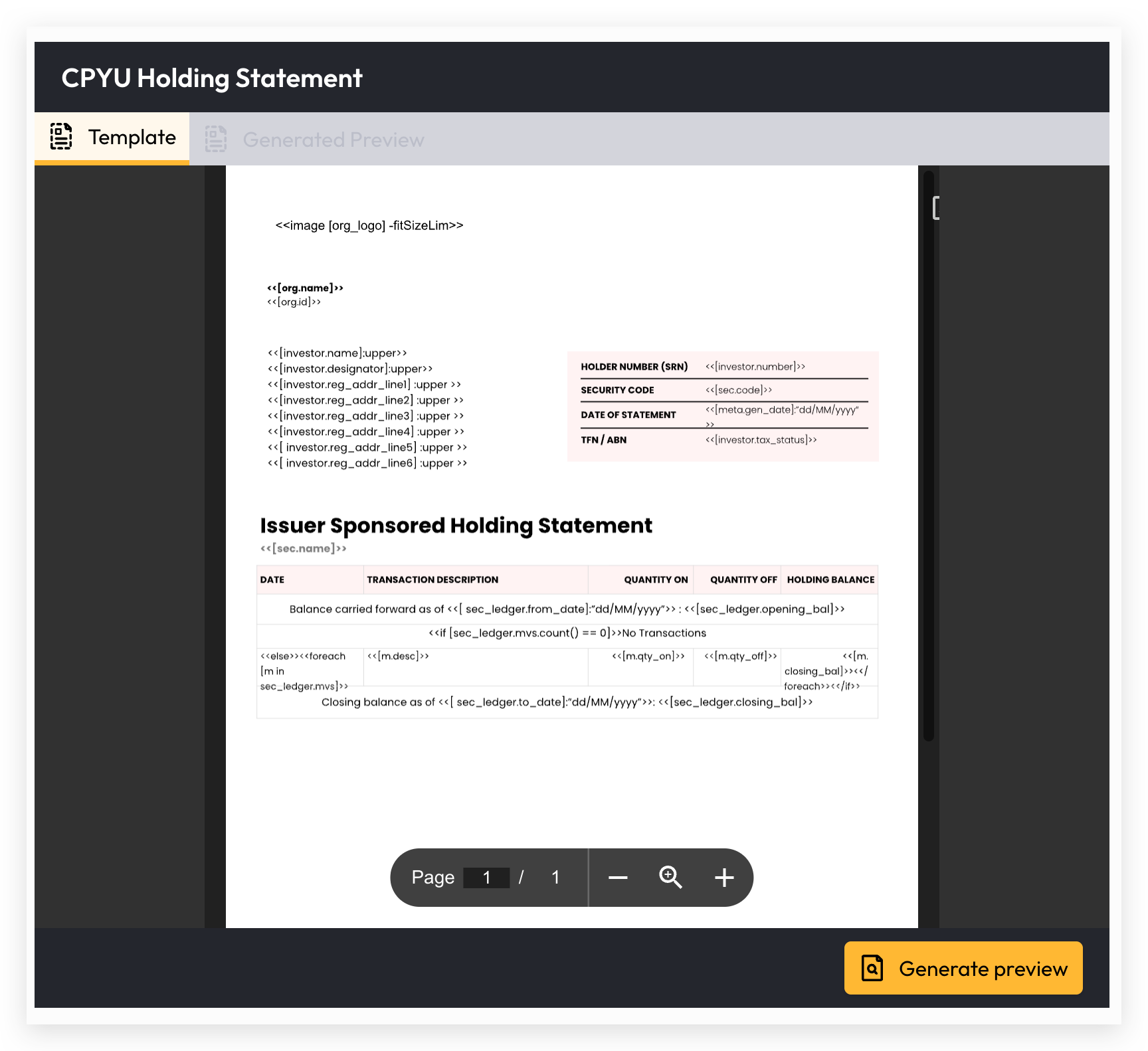
Select a document template — once selected, the template content will automatically load and display in the viewer panel on the right.
Document Criteria
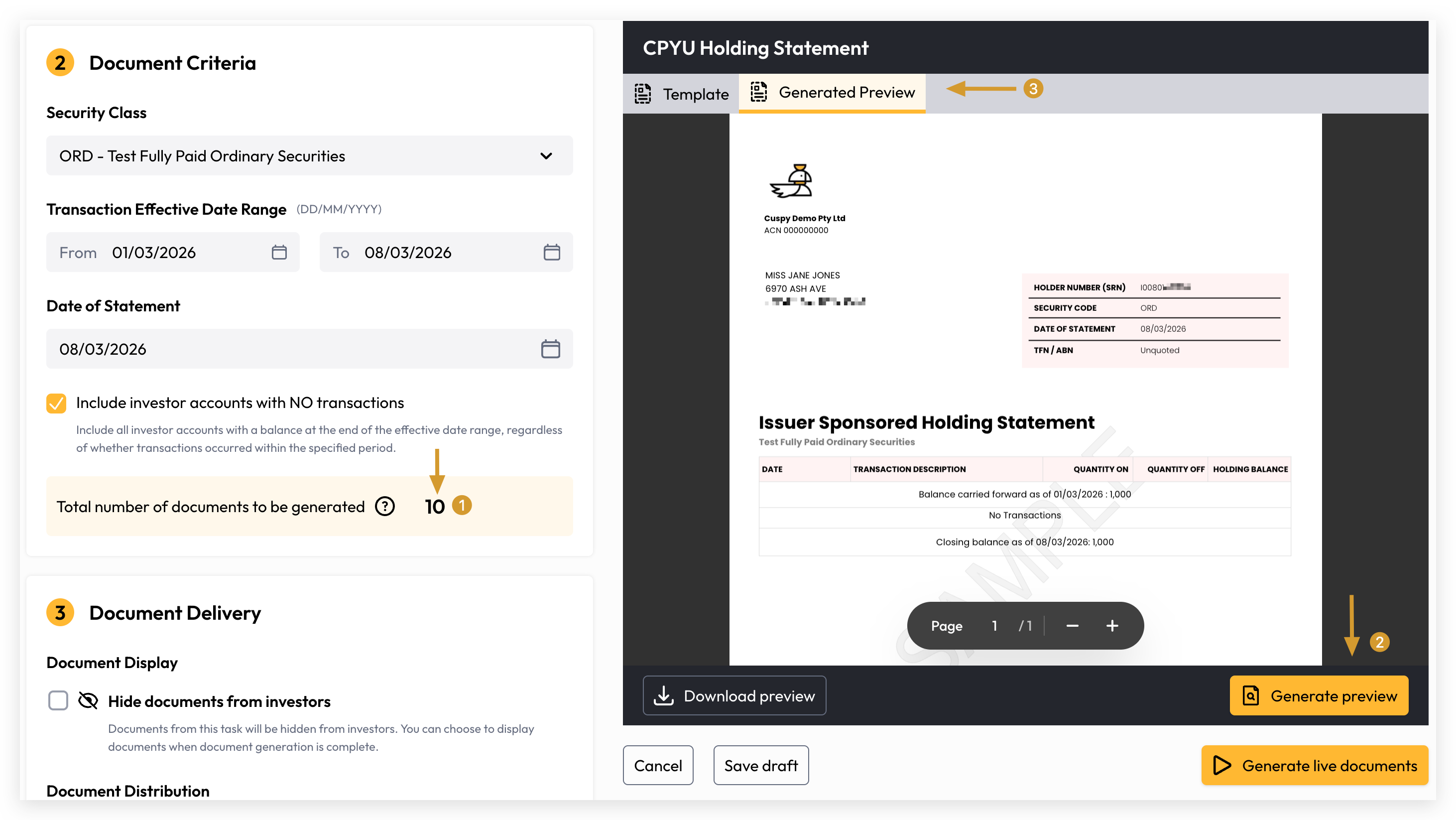
Holding statement generation is based on a defined transaction effective date range and the selected security class.
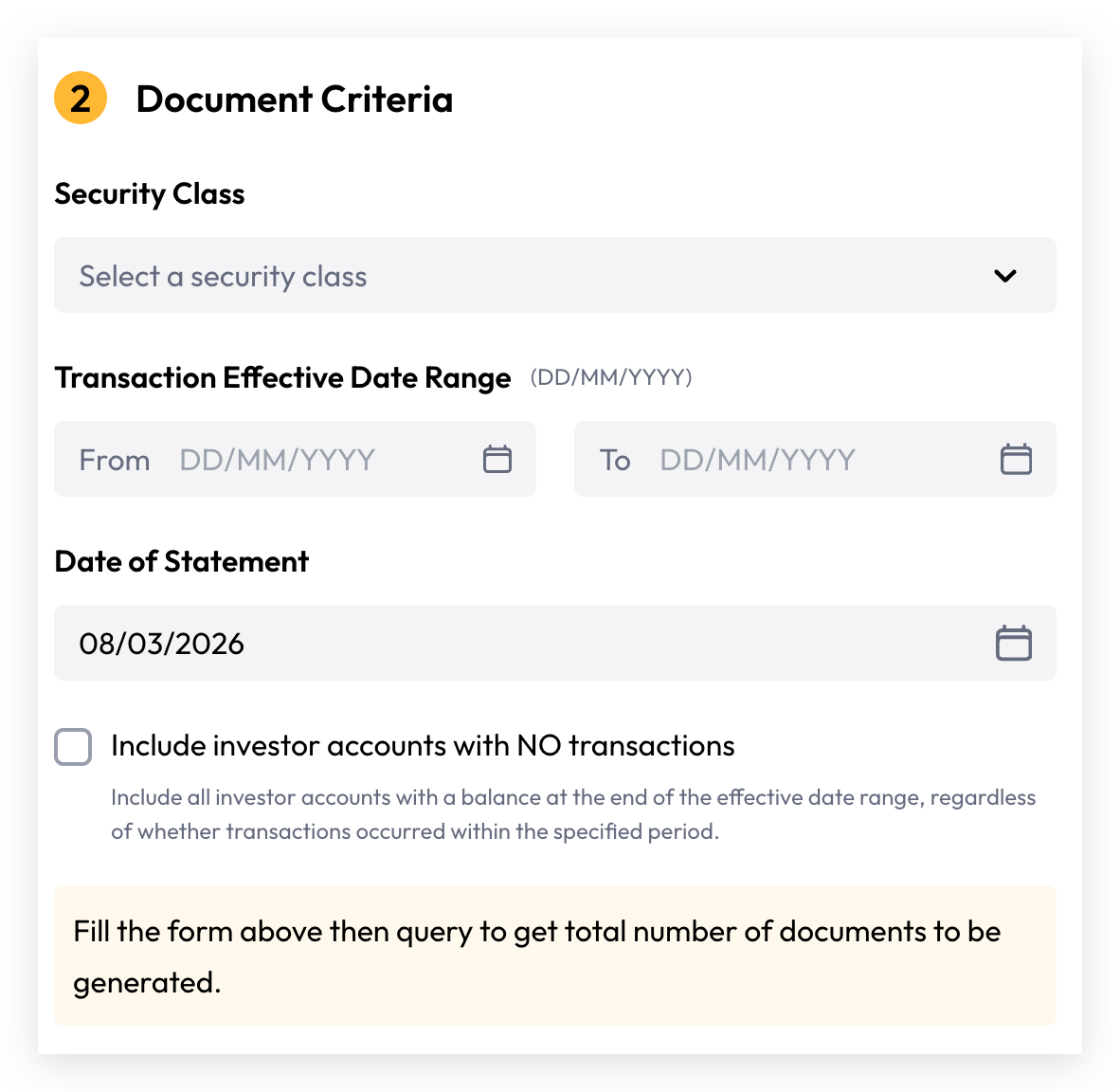
When "Include investor accounts with NO transactions" is enabled, the document generation will include all investor accounts that hold a balance as at the end of the selected date range, regardless of whether any transactions occurred during the period.
Generate Preview
Once the Document Setup and Document Criteria have been configured, you can generate a preview to verify the output before proceeding with PDF generation. Use the preview to review the layout, branding, and data presentation.
It is always good practice to generate a preview document whenever a template is updated or the document criteria is changed.
Document Delivery
Document Display
By default, all generated documents are stored against each investor account and are accessible online.
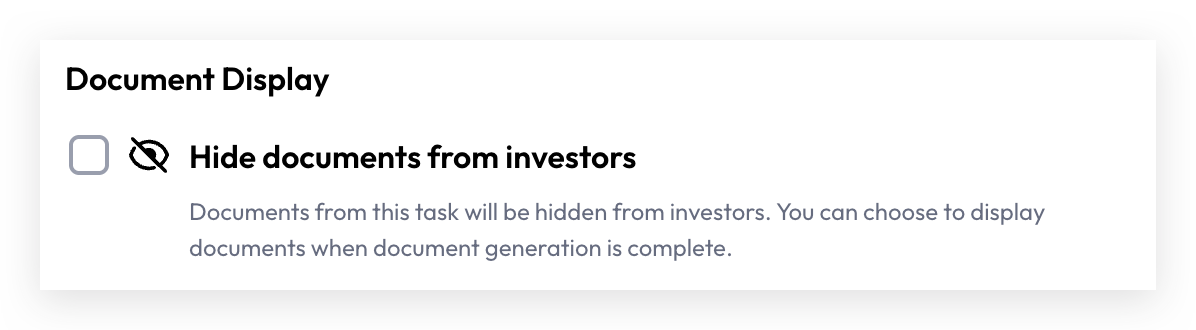
The "Hide documents from investors" option allows you to restrict investor access to generated documents until you are ready to release them. Once satisfied with the output, you can make them visible by selecting "Show documents to investors". This feature is also useful for concealing documents that were generated in error, such as those with layout issues or incorrect criteria selections.
Document Distribution
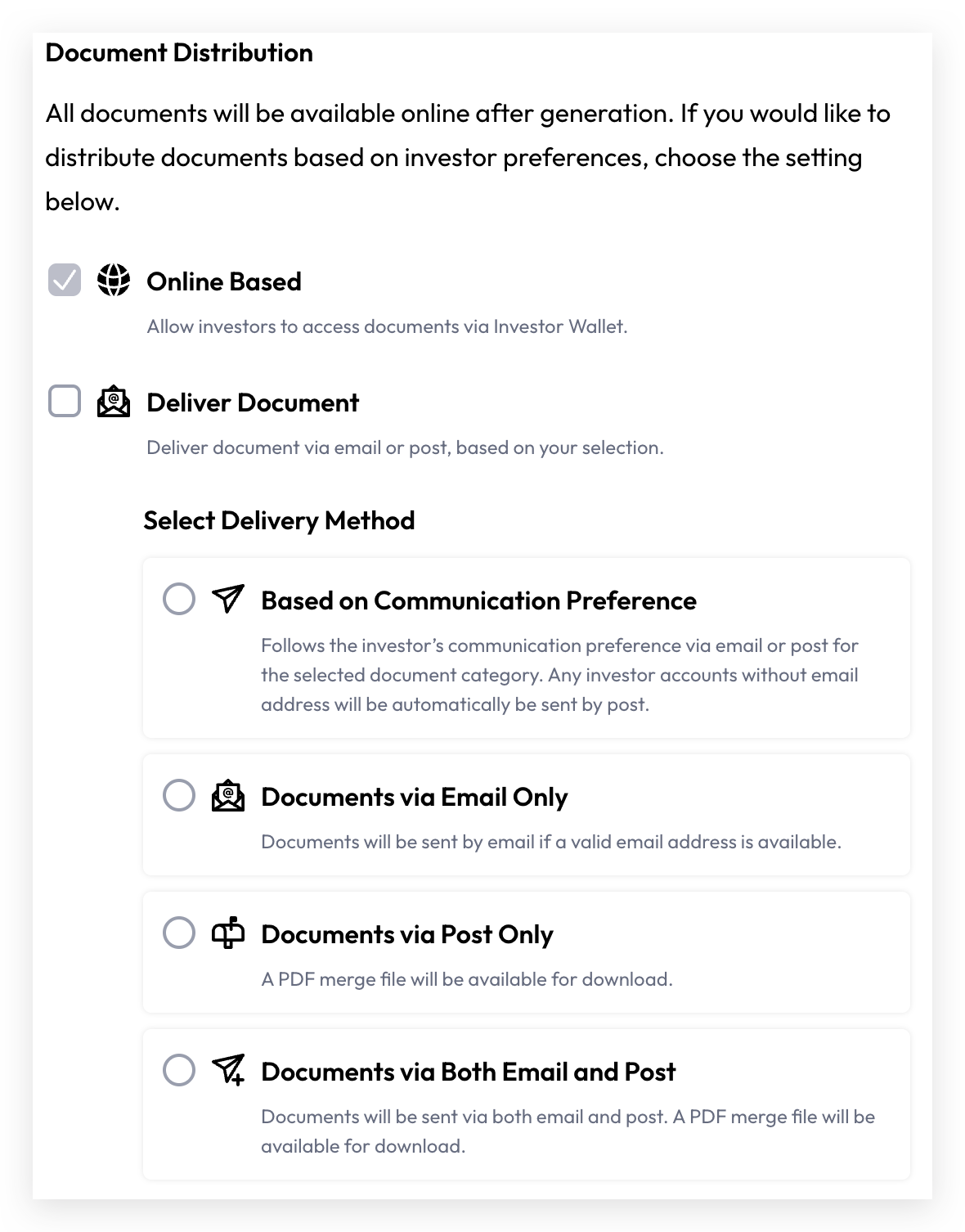
By default, all generated documents are stored against each investor account and are accessible online.
To deliver documents via email or post, enable the Deliver Document option and select the appropriate distribution method:
Cuspy does not physically post documents. Post means that Cuspy allows users to merge all post-distribution documents into a single PDF for preparation and submission to a printing house.
Based on Communication Preferences — Document delivery follows each investor account's configured communication preferences. If an investor has selected email as their preferred method, the generated document will be prepared for email delivery.
Documents via Email Only — All generated documents will be prepared for email delivery, provided the investor account has a primary email address configured in their contact details.
Documents via Post Only — Cuspy does not physically post documents. However, when this distribution method is selected, Cuspy allows users to merge all post-distribution documents into a single PDF for preparation and submission to a printing house.
Documents via Both Email and Post — This option prepares email-ready documents for all investor accounts with a primary email address, while also allowing users to merge all documents into a single PDF for printing house preparation.
Live Generation
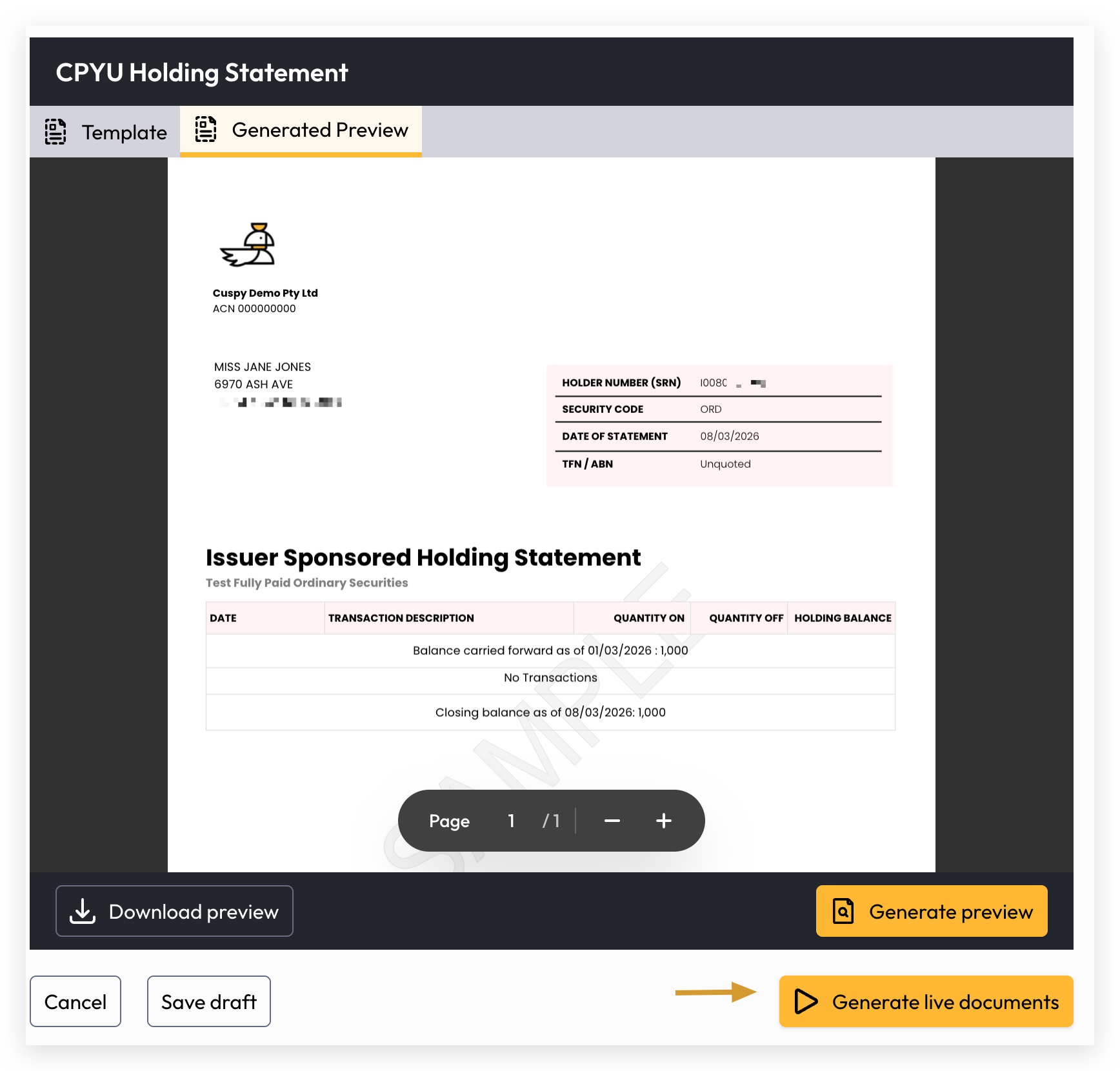
Once everything has been reviewed and previewed, click "Generate Live Documents" to proceed with the final document generation.
Track and Trace Generation Progress
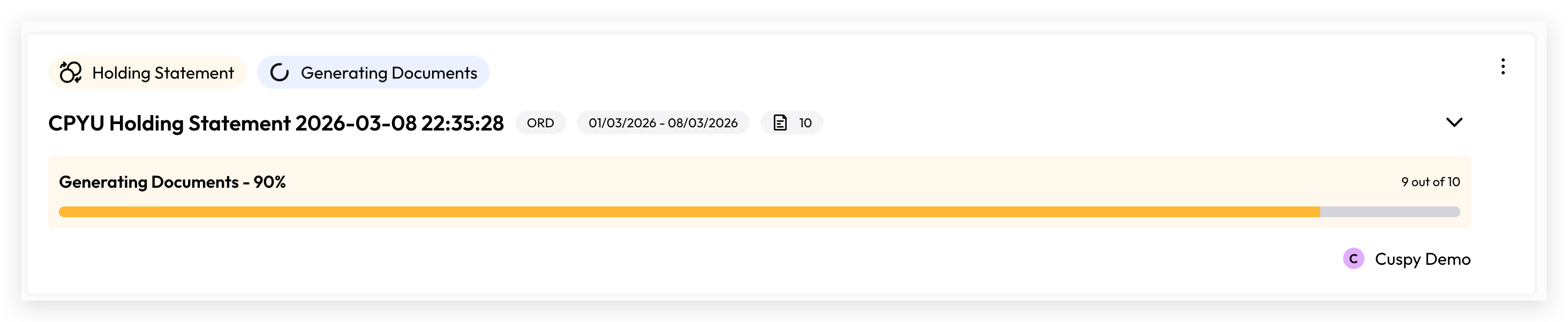
Once live document generation has been initiated, you can monitor the progress of each task on the document list page.
To-Do Task after Generation
Click To-do to expand the follow-up tasks available based on your selected document distribution criteria. Please refer to the document distribution details above for further information.
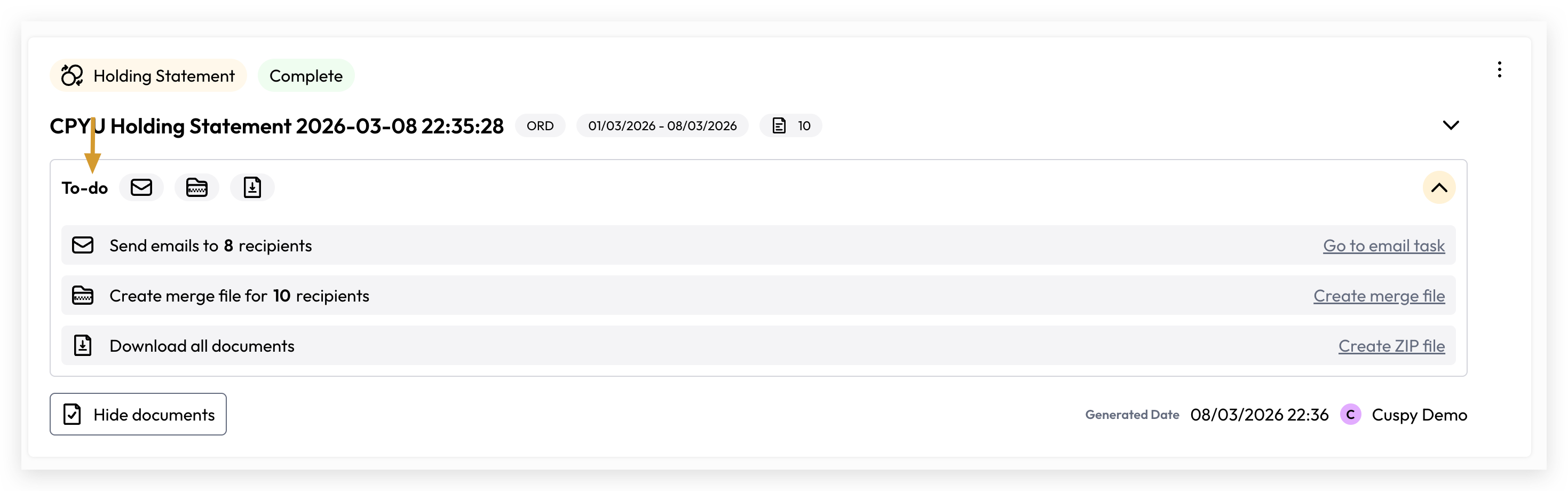
If email distribution is required, click "Go to Email Task" to send the documents to the relevant investor accounts via email.
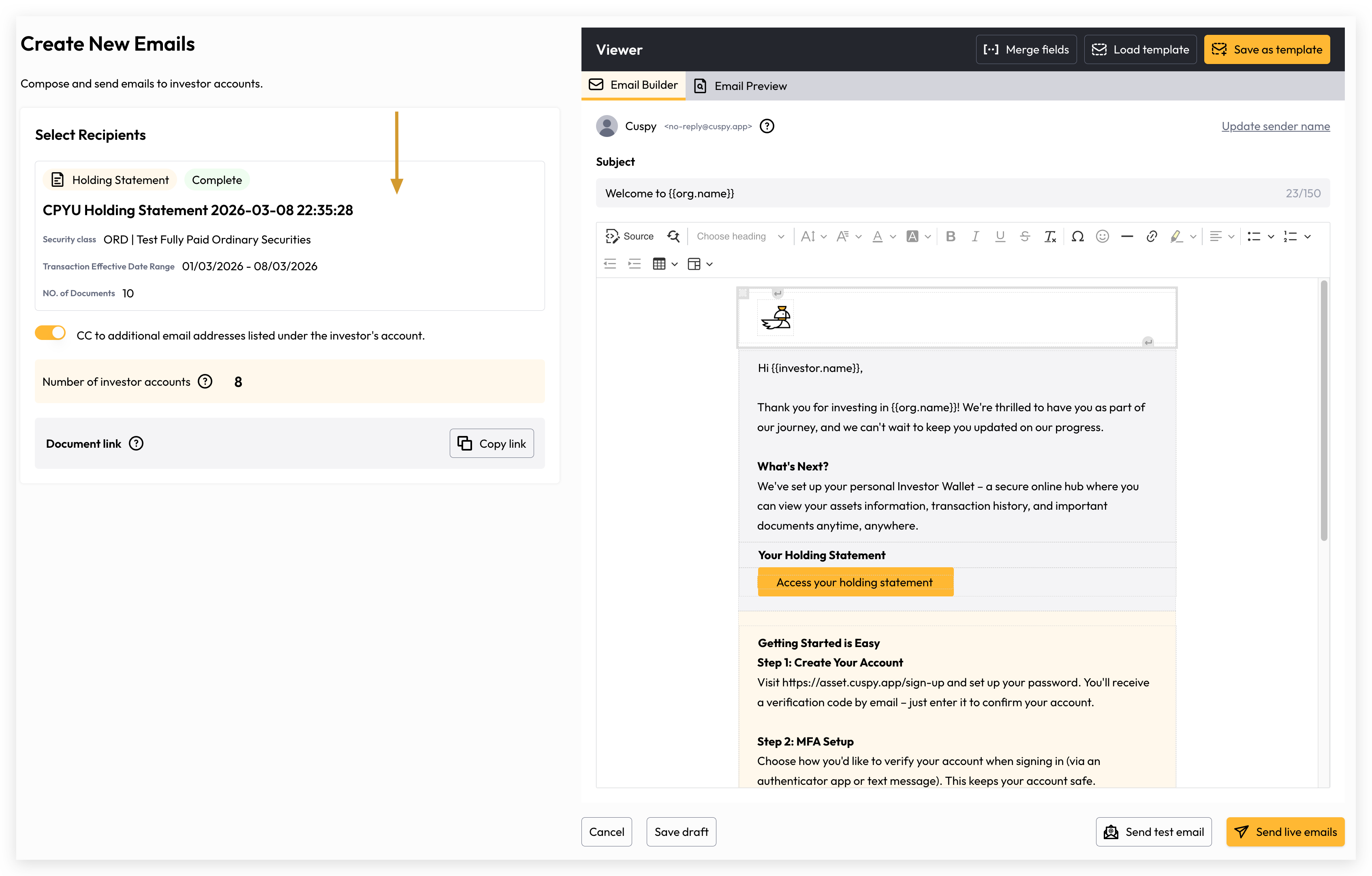
When creating a new email, the recipients are automatically pre-filled based on the document generation task, along with all associated details. Only investor accounts linked to the generated documents and eligible for email sending will be included.
Make sure your email template contains the Document Link merge field. If it's missing, investors won't be able to retrieve their document from the email. You can use Cuspy's default email template which already has the document link included.
For more information on the next steps for sending emails, please refer to the Delivery Emails section.
If postal distribution is required, click "Create Merge File" to combine all documents flagged for post into a single PDF. Once the job is complete, the merged PDF will be available to download on the same page.
To download all generated documents, click "Create ZIP File" to package all PDFs into a single ZIP file. Once complete, you can download and extract the file to access all individual PDFs.
Please ensure all downloaded documents are stored securely on your local device. These documents contain sensitive investor information and must not be disclosed or shared with any unauthorised parties.
Still need help? Share an idea