Manage Email Template
Learn how to save and reuse email templates for your investor correspondence.
Save as Template
Go to Correspondence > Create New Emails The email composer includes a rich-text Email Builder on the right-hand side. To create a reusable template:
Enter your email Subject in the subject line field (up to 150 characters).
Type or paste your email content into the body editor. You can use the formatting toolbar to apply styles such as bold, italic, lists, tables, and more.
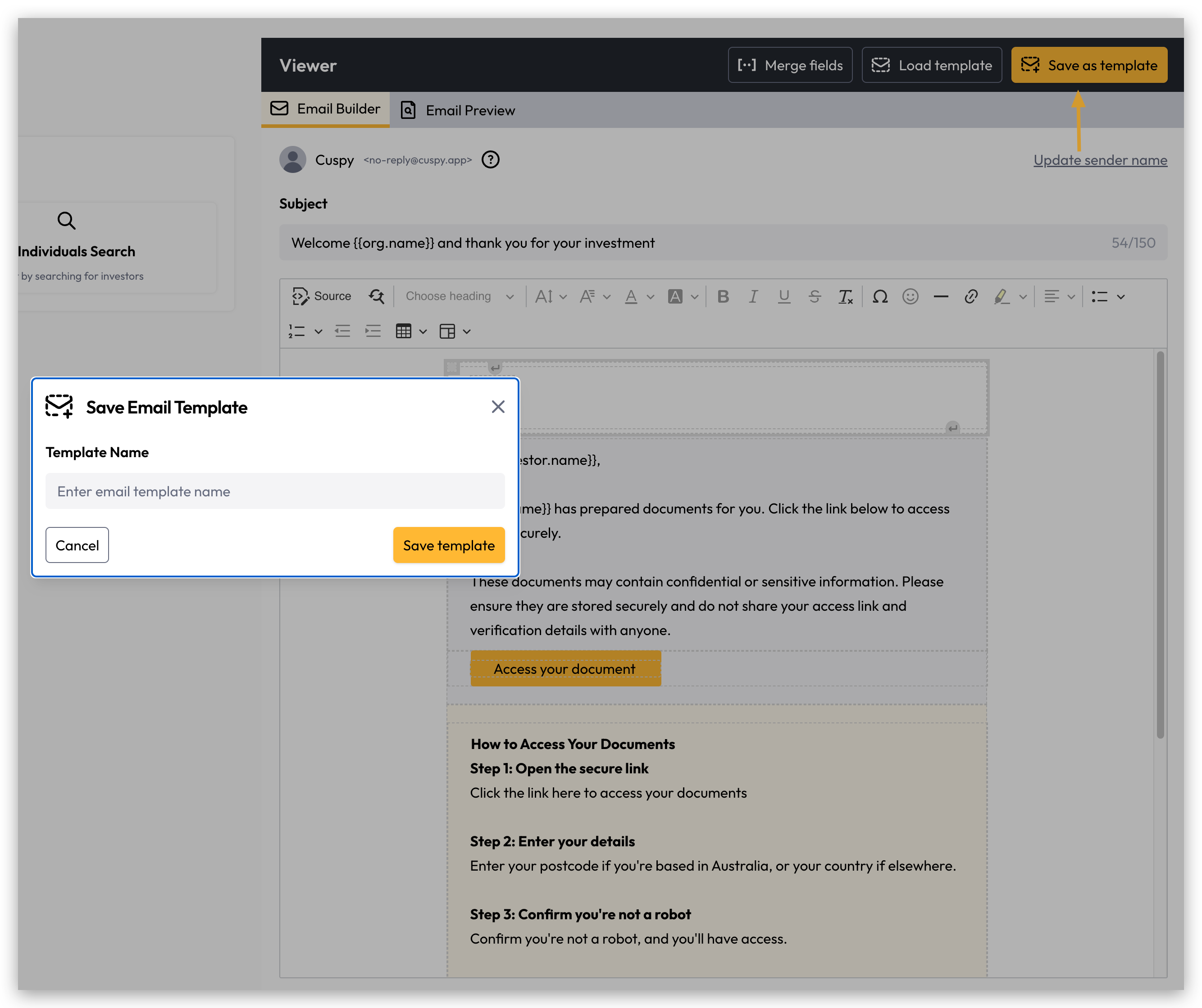
Once your subject and body are ready, click the Save as template button in the top-right corner of the Viewer panel.
Enter a template name when prompted, then confirm to save. Your template will now be available to load in future emails.
Load a Template
Go to Correspondence > Create New Emails If you have previously saved templates, you can load one into the composer to pre-fill your subject and body:

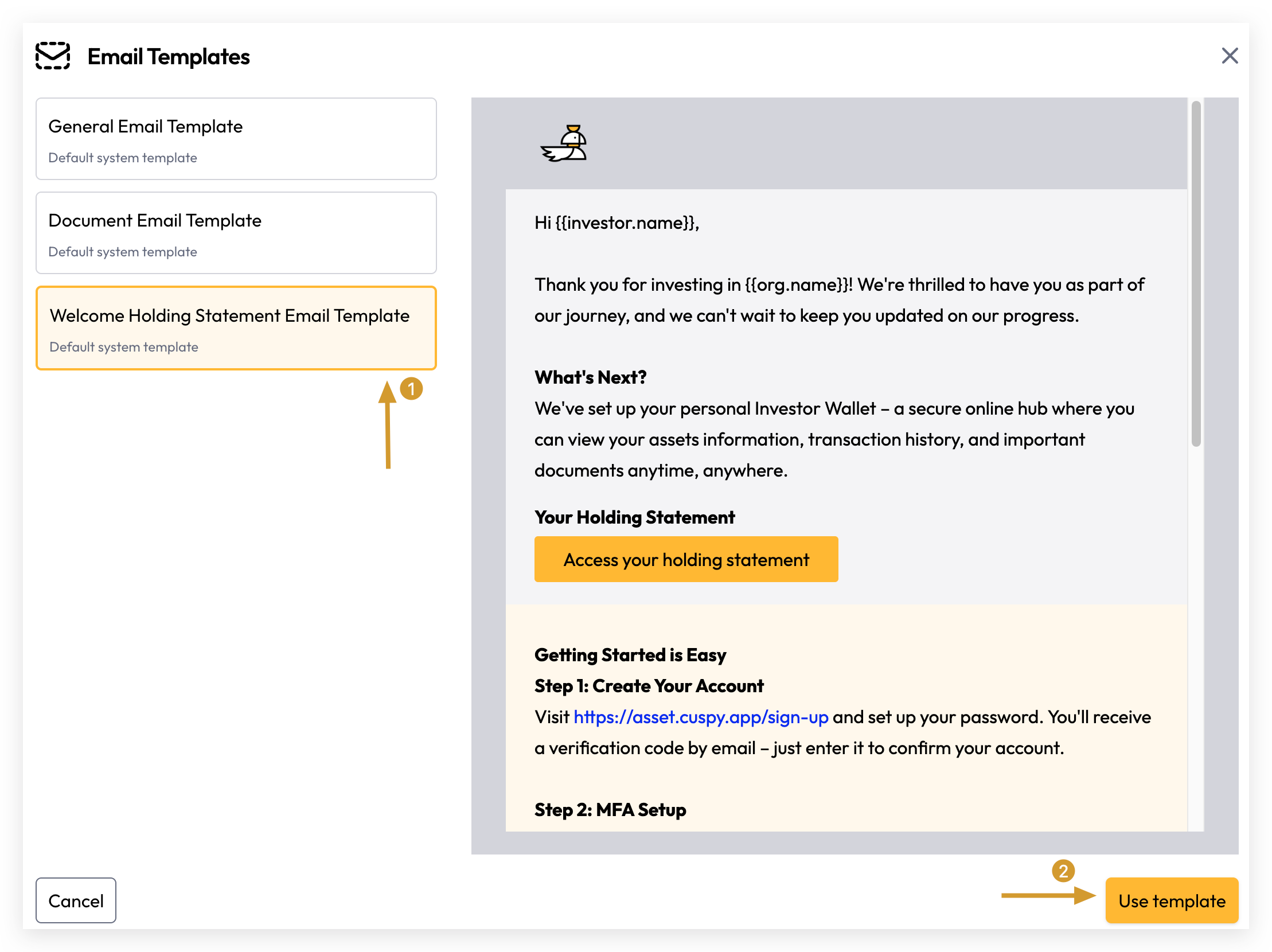
Click the Load template button in the top-right corner of the Viewer panel.
Select the template you want to use from the list. The subject line and body content will be automatically populated with the saved template content, which you can then edit as needed before sending.
Using Merge Fields
Tip: If you plan to save an email as a template, consider including merge fields in the body so that personalised data is inserted automatically each time the template is used.
Merge fields allow you to personalise email content dynamically for each investor recipient. Click the Merge fields button in the Viewer toolbar to browse and insert available fields into your email body. When the email is sent, merge fields will be automatically replaced with the corresponding investor account data.

After Email Merge Fields popup is loaded, you can simply click the copy each merge fields to insert into your email content.
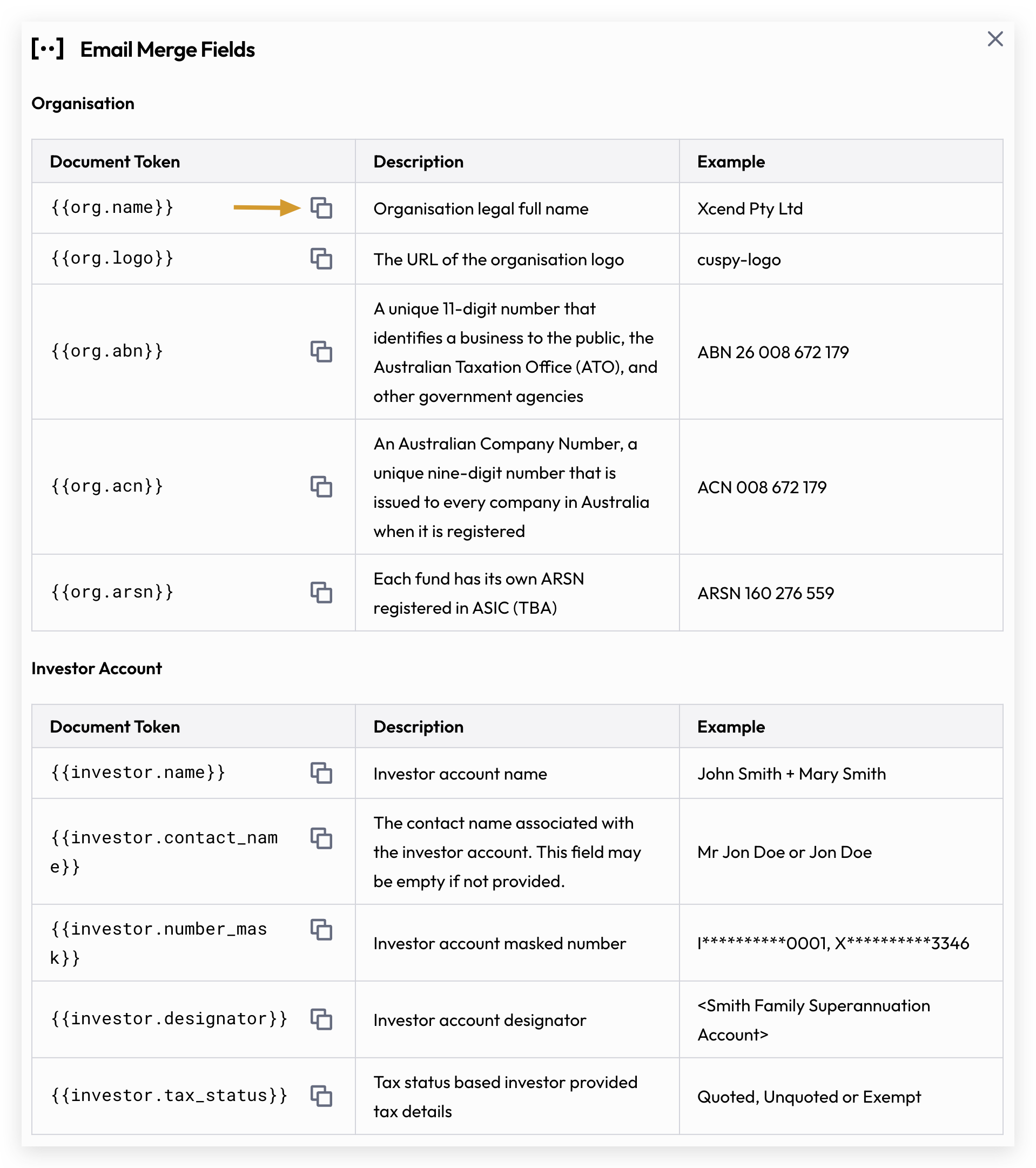
The available merge fields for correspondence are pre-defined by the system and cover organisation, investor account, and secure document link contexts. More merge fields will become available as the platform expands.
Email Preview
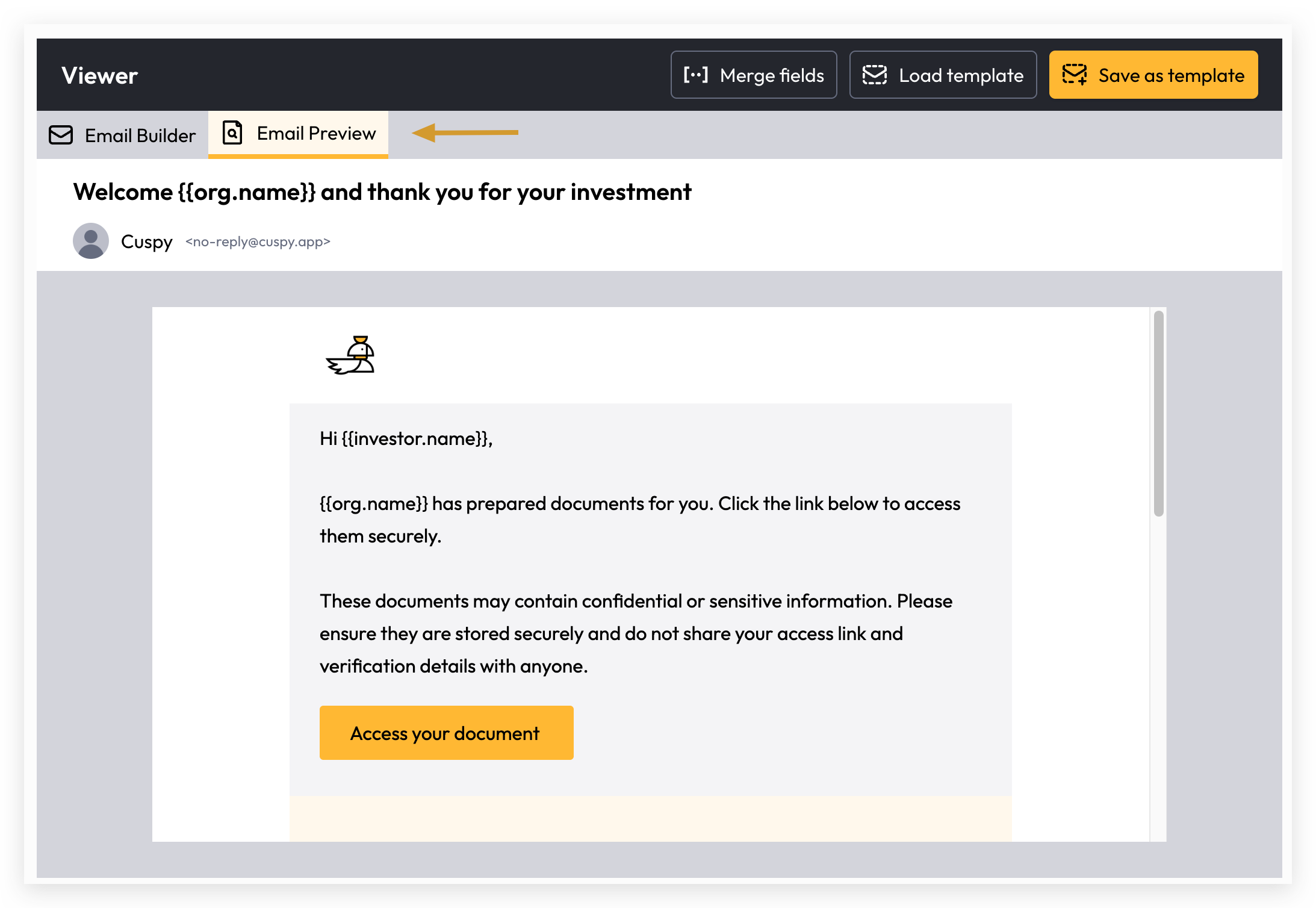
Once you have composed your email, click the Email Preview tab (next to Email Builder) to see how the email will appear to recipients before sending or saving.
Send Options
Please refer Delivery Emails for more details.
Still need help? Share an idea